

How to Transfer User Data Before Deleting an Account
When an employee leaves your company, deleting their Google Workspace account may seem like the final step. However, removing an account too soon can lead to the loss of important business files, emails, calendars, and other work-related data.
Before you delete a user, it’s important to transfer any valuable information to another employee or back it up if needed. This helps your organization keep access to important documents, customer communications, and shared resources.
In this guide, you’ll learn what data should be transferred, what Google Workspace allows you to move, and how to prepare an account for safe deletion without risking important business information.
What Happens When You Delete a Google Workspace User?
Deleting a user account permanently removes that user from your Google Workspace organization. While Google provides a short recovery period for deleted accounts, you shouldn’t rely on it as a backup strategy.
If you delete a user without transferring their data first, your organization could lose access to important business information.
Depending on how the account was used, this may include:
- Google Drive files owned by the user
- Gmail emails and conversations
- Google Calendar events
- Google Contacts
- Google Sites ownership
- Google Keep notes
- Other Google Workspace data linked to that account
That’s why experienced Google Workspace administrators always review and transfer important data before removing a user account.
Why Should You Transfer User Data First?
An employee’s work doesn’t disappear when they leave. Their documents, spreadsheets, presentations, emails, and calendars often contain information that other team members still need.
For example, imagine a sales manager leaves your company. Their Google Drive may contain customer proposals, while their Gmail account holds important conversations with clients. Deleting the account without transferring this data could disrupt ongoing work and make it difficult for the new employee to continue where they left off.
Transferring user data before deletion helps you:
- Prevent accidental data loss
- Keep business files available to the team
- Preserve important customer emails
- Maintain access to shared documents
- Ensure a smooth employee offboarding process
For businesses, schools, software houses, and NGOs in Pakistan, following this process can save time and prevent unnecessary complications later.
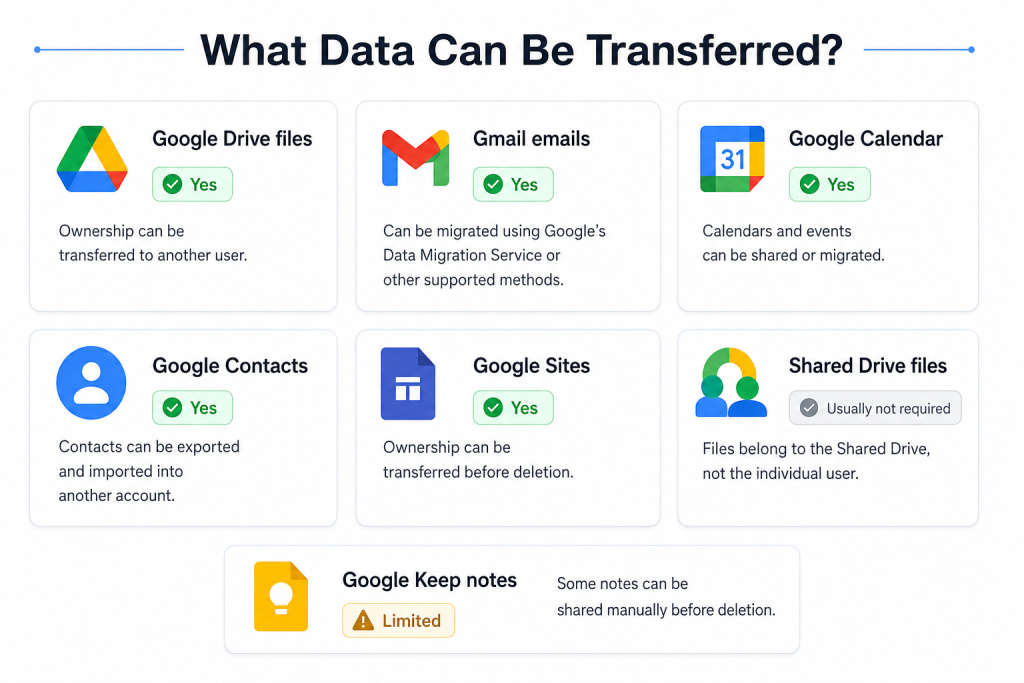
What Data Can Be Transferred?
Not all Google Workspace data is handled the same way. Some information can be transferred directly to another user, while other data may need to be migrated, exported, or shared before deleting the account.
Here’s a quick overview:
Data | Can It Be Transferred? | Notes |
Google Drive files | ✅ Yes | Ownership can be transferred to another user. |
Gmail emails | ✅ Yes | Can be migrated using Google’s Data Migration Service or other supported methods. |
Google Calendar | ✅ Yes | Calendars and events can be shared or migrated. |
Google Contacts | ✅ Yes | Contacts can be exported and imported into another account. |
Google Sites | ✅ Yes | Ownership can be transferred before deletion. |
Shared Drive files | ✅ Usually not required | Files belong to the Shared Drive, not the individual user. |
Google Keep notes | ⚠️ Limited | Some notes can be shared manually before deletion. |
Understanding what can be transferred helps you plan the offboarding process more effectively and reduces the risk of losing valuable business data.
Before You Delete the User
Taking a few minutes to prepare can prevent major problems later. Before deleting any Google Workspace account, review the user’s data and decide what needs to be kept.
A good checklist includes:
- Review the user’s Google Drive files.
- Identify important Gmail conversations that should be preserved.
- Choose the new owner for business documents.
- Check shared calendars and meeting schedules.
- Confirm that another employee has access to ongoing projects.
- Make sure any important Google Sites or Forms have a new owner.
If you’re unsure whether the account should be deleted immediately, consider suspending the user first. This gives you time to review their data and complete the transfer without interrupting your organization’s work.
What You'll Learn Next
Now that you know why transferring user data is important, the next step is learning how to move that data safely. In the next section, we’ll walk through the process of transferring Google Drive ownership, migrating Gmail emails, handling Calendar data, and managing other important information before permanently deleting a Google Workspace user account.
How to Transfer Google Drive Files
For most organizations, Google Drive contains the most valuable user data. Project documents, spreadsheets, presentations, contracts, and reports are often stored here. Before deleting a user, transfer ownership of these files to another employee so work can continue without interruption.
Transfer Drive Ownership from the Admin Console
Follow these steps:
- Sign in to your Google Admin Console with an administrator account.
- Go to Directory > Users.
- Select the user whose account you plan to delete.
- Open the user’s options and choose Transfer ownership of Drive files (or follow the data transfer option available in your Admin Console).
- Enter the email address of the new owner.
- Start the transfer and wait for Google to complete the process.
The transfer may take anywhere from a few minutes to several hours, depending on how many files the user owns.
Tip: Always verify that the new owner can access the transferred files before deleting the original account.
How to Transfer Gmail Emails
Google Drive files can be transferred easily, but Gmail works differently. If the employee’s emails contain customer conversations, invoices, or project updates, you should preserve them before deleting the account.
One of the most reliable methods is to use Google’s Data Migration Service, which allows administrators to migrate emails from one Google Workspace account to another.
If only a few emails need to be saved, the user can also export their mailbox before leaving. The best method depends on how much email data needs to be retained.
Before deleting the account, make sure any important email history has been migrated or backed up.
How to Transfer Google Calendar Data
Calendars often contain future meetings, customer appointments, training sessions, and internal events. Losing this information can create confusion for the rest of the team.
Depending on your organization’s needs, you can:
- Share the user’s calendar with another employee.
- Export and import calendar events.
- Recreate important recurring meetings under the new owner’s account.
If the employee managed company-wide schedules, review their calendars carefully before deleting the account.
How to Transfer Google Contacts
Business contacts are another important asset. Sales teams, support staff, and managers may store customer or vendor information in Google Contacts.
To keep these contacts:
- Export the contacts from the user’s account.
- Import them into the new user’s Google Contacts.
- Verify that important contact groups have been transferred successfully.
This ensures the next employee can continue communicating with customers without rebuilding the contact list from scratch.
Check Google Sites, Forms, and Other Resources
Some users own more than just files and emails. They may also be responsible for Google Sites, Forms, or other Workspace resources.
Before deleting the account, review whether the user owns:
- Google Sites
- Google Forms
- Shared folders
- Important spreadsheets
- Company presentations
- Business templates
If ownership can be transferred, do so before deleting the account. Otherwise, make sure another administrator has access to these resources.
What About Shared Drives?
If your organization uses Shared Drives, the good news is that most files stored there are already owned by the organization instead of an individual user.
This means deleting a user’s account usually won’t delete files stored in a Shared Drive.
However, you should still check whether the departing employee was responsible for managing permissions or organizing folders. Assign another team member to handle these responsibilities if needed.
Verify Everything Before Deleting the User
Before you permanently remove the account, take a few minutes to confirm that all important data has been transferred successfully.
Review the following checklist:
- ✔ Google Drive ownership has been transferred.
- ✔ Important Gmail emails have been migrated or backed up.
- ✔ Calendar events are still accessible.
- ✔ Contacts have been exported or imported if needed.
- ✔ Google Sites and Forms have a new owner.
- ✔ Another employee has access to shared documents and folders.
Completing these checks helps prevent accidental data loss and avoids unnecessary recovery requests later.
Best Practices for Transferring User Data
A well-planned offboarding process helps protect your organization’s data and makes the transition easier for the rest of the team. Instead of deleting accounts immediately, follow a consistent process every time an employee leaves.
Here are some recommended best practices:
- Suspend the user account first if you don’t need to delete it immediately.
- Transfer Google Drive ownership before starting the deletion process.
- Migrate or back up important Gmail emails.
- Review calendars, contacts, and shared resources.
- Confirm that the new owner can access transferred files.
- Keep a record of completed data transfers for future reference.
Having a simple offboarding checklist can help administrators avoid mistakes and ensure nothing important is overlooked.
Common Mistakes to Avoid
Even experienced administrators can accidentally remove important business data if they rush the process. Avoid these common mistakes when deleting a Google Workspace user.
Deleting the Account Too Soon
Once an account is deleted, recovering data becomes much more difficult. Always review and transfer important information before removing the user.
Forgetting to Transfer Google Drive Files
Many business documents are owned by individual users. If ownership isn’t transferred, your team may lose access to valuable files.
Ignoring Gmail Data
Customer emails, project discussions, and business records are often stored in Gmail. Decide whether these emails should be migrated or backed up before deleting the account.
Not Reviewing Shared Resources
The user may own Google Sites, Forms, or shared documents that other employees still rely on. Make sure someone else has ownership or access before deleting the account.
Skipping the Final Check
Take a few minutes to verify that all important data has been transferred successfully. A quick review can prevent hours of recovery work later.
Frequently Asked Questions
It depends. Google provides a limited recovery period for deleted users, but there's no guarantee that all data can be restored. It's always safer to transfer data before deleting the account.
It can. If the user owns files that haven't been transferred to another account, those files may eventually be deleted. Always transfer ownership first.
Usually not. Files in Shared Drives belong to the organization rather than an individual user. However, you should still make sure another team member has the appropriate access.
Yes. Administrators can use Google's supported migration tools to move important emails to another Google Workspace account before deleting the user.
Yes, in many cases. Suspending the account gives you time to review files, transfer ownership, migrate emails, and confirm that nothing important will be lost.
Summary
Deleting a Google Workspace user account is more than just removing a name from your organization. It’s the final step in an employee offboarding process that should begin with reviewing and transferring important business data.
Before deleting any account, make sure Google Drive files have a new owner, important Gmail emails have been migrated or backed up, calendars and contacts have been reviewed, and any shared resources remain accessible to the rest of your team. Spending a little extra time preparing can prevent permanent data loss and keep your business running smoothly.
By following the steps in this guide, Google Workspace administrators can confidently delete user accounts while protecting valuable business information.
Need Help Managing Google Workspace?
Managing user accounts, transferring data, and handling employee offboarding can be challenging, especially for growing organizations. If your business, school, or nonprofit in Pakistan needs assistance with Google Workspace administration, GworkspacePartner.pk can help.
As a trusted Google Workspace Partner in Pakistan, we help organizations manage users, migrate data, configure security settings, and get the most from their Google Workspace environment.