
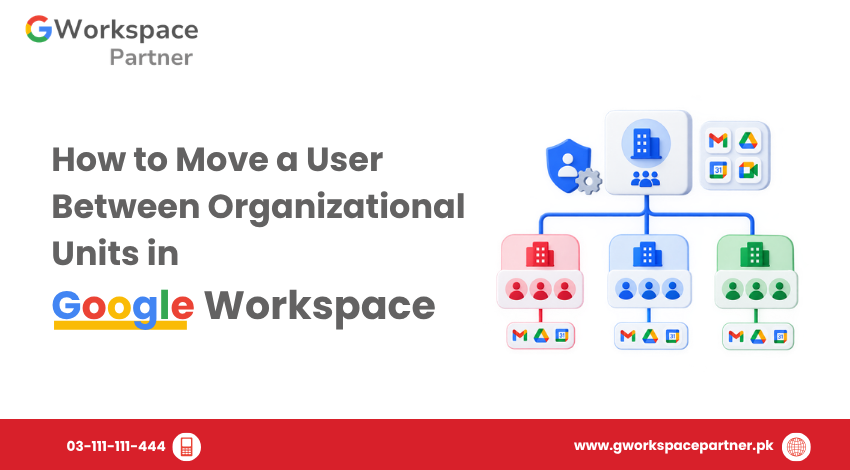
Google Workspace administrators can move users between Organizational Units (OUs) when an employee changes departments, a student moves to another grade, or an account needs to follow a different set of organizational policies.
Because Organizational Units can have different Google Workspace settings, always check the destination OU before moving a user.
Move a user when their organizational role or administrative requirements change.
Common examples include:
For example, a Pakistani school might use separate OUs for teachers and students so administrators can apply different settings to each group.
Before changing the user’s Organizational Unit, check three things:
Make sure you are moving the user to the correct OU. The destination determines which organizational settings apply to the account.
Check whether the destination OU has different service, security, or access settings. OU settings can be inherited from parent OUs or configured differently for a particular OU.
Your administrator role must have the required permissions to manage users and move them between Organizational Units. If you cannot see the relevant controls, your administrator role may not have sufficient privileges.
You can move an existing user from one OU to another through the Google Admin console.
Sign in to the Google Admin console using an administrator account with the necessary permissions.
From the Admin console, go to:
Menu → Directory → Users
Find the user you want to move. You can search by the user’s name or email address.
Open the user’s account.
Before continuing, verify that you have selected the correct account, particularly if several users have similar names.
Use the option for changing the user’s Organizational Unit and select the destination OU.
For example:
Current OU: /Sales
Destination OU: /Finance
Confirm the change to move the user.
After making the change, check the user’s account information and confirm that the user is associated with the intended Organizational Unit.
If the destination OU has different policies, also verify any important settings that should apply to the user.
Moving a user between OUs does not create a new account or delete the existing account. It changes the user’s organizational placement within your Google Workspace organization.
The user becomes subject to the settings that apply to the destination OU. The actual effect depends on the configuration of that OU, its parent OUs, and any applicable settings controlled through groups.
For example, suppose the Sales and Finance OUs have different Google Workspace policies. Moving an employee from Sales to Finance may cause different settings to apply to that user’s account.
Google notes that changes to organizational settings can take up to 24 hours, although they usually take effect sooner.
Organizational Units and Google Groups are not the same thing.
An OU is part of your Google Workspace organizational structure and can be used to apply settings to users based on their organizational placement. Groups can also be used for certain access and configuration requirements.
Therefore, moving a user to another OU is different from adding that user to a Google Group.
Review the destination OU before making the change. This helps prevent users from unexpectedly receiving different settings.
If the destination OU has substantially different policies, consider testing the move with an appropriate test account first.
After the move, check any services or settings that are particularly important to the user’s role.
For example, if the destination OU has different restrictions for a particular Google Workspace service, verify that the user’s access matches your expectations.
Use OUs for meaningful administrative differences such as departments, schools, or user types. Avoid creating unnecessary OUs for every minor difference.
A user may receive different settings after being moved. Always review the destination OU first.
Moving a user between OUs does not mean changing their primary email address. The user’s account remains the same.
A destination OU may inherit settings from its parent OU. Don’t look only at settings configured directly on the destination OU.
After moving the account, confirm that the user is in the intended OU and that important settings are behaving as expected.
No. Moving a user between Organizational Units does not delete or recreate the Google Workspace account.
They can. The user becomes subject to the settings that apply to the destination OU, including applicable inherited settings.
No. Moving the user to another OU is an organizational change and does not by itself change the user's email address.
Yes. An administrator with the necessary permissions can move the user to another appropriate OU.
No. Organizational Units exist within a Google Workspace organization. Moving a user between OUs is different from transferring or migrating an account between separate Google Workspace organizations.
Your administrator role may not have the required permissions to move users or manage the relevant Organizational Units. Check your assigned administrator privileges if the option is unavailable.
Moving a user between Organizational Units is a simple Google Workspace administration task, but the destination OU should be checked before making the change.
The basic process is:
For larger organizational changes, review the destination OU’s policies first so users receive the intended Google Workspace configuration.

As G Suite resellers in Pakistan, we offer great prices on tools that improve communication, enhance teamwork, and provide strong security. Boost your business efficiency with us today!
97-C OPF Society, Khayaban-e-Jinnah Road, Lahore, Pakistan
Copyright © 2025 gworkspacepartner.pk All Rights Reserved.
WhatsApp us