
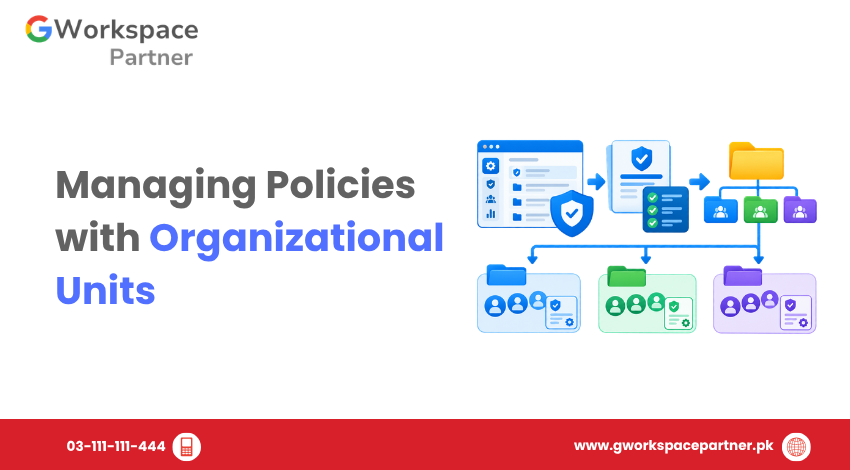
Google Workspace organizational units (OUs) let administrators apply different settings and supported policies to different groups of users. This is useful when employees, interns, departments, or other users need different configurations.
For example, a software company in Pakistan might use separate organizational units for employees and interns and apply different Google Workspace settings to each group.
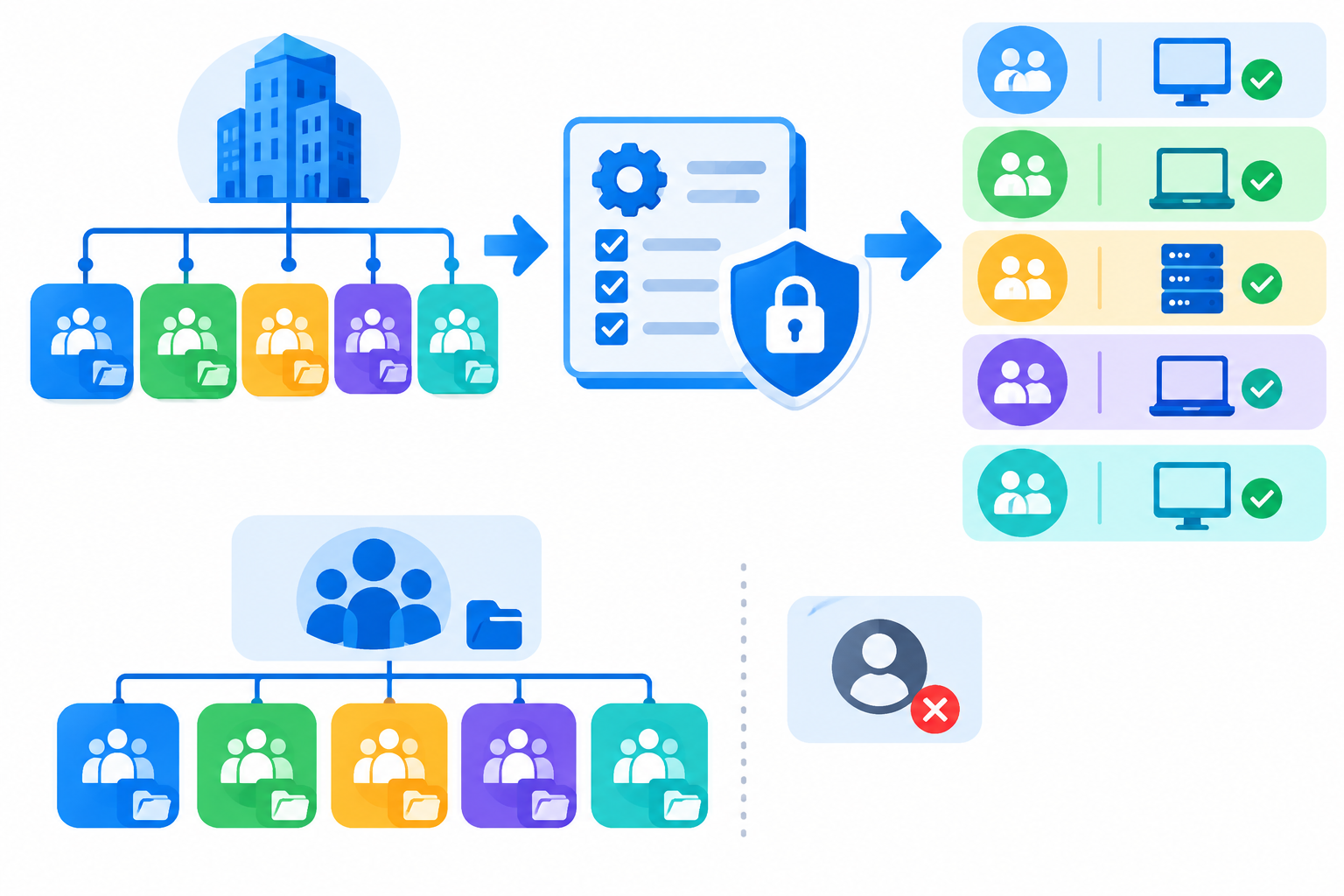
An organizational unit is a group of users that can receive a specific set of Google Workspace settings.
Instead of applying the same configuration to everyone, administrators can use OUs to manage settings based on users’ roles or administrative requirements.
For example, an organization could have:
The important point is that not every Google Workspace setting supports the same OU-based controls. The available options depend on the service and setting being configured.
Organizational units are useful when different users need different administrative settings.
Common examples include:
If a setting should be the same for everyone, managing it at the higher organizational level may be simpler.
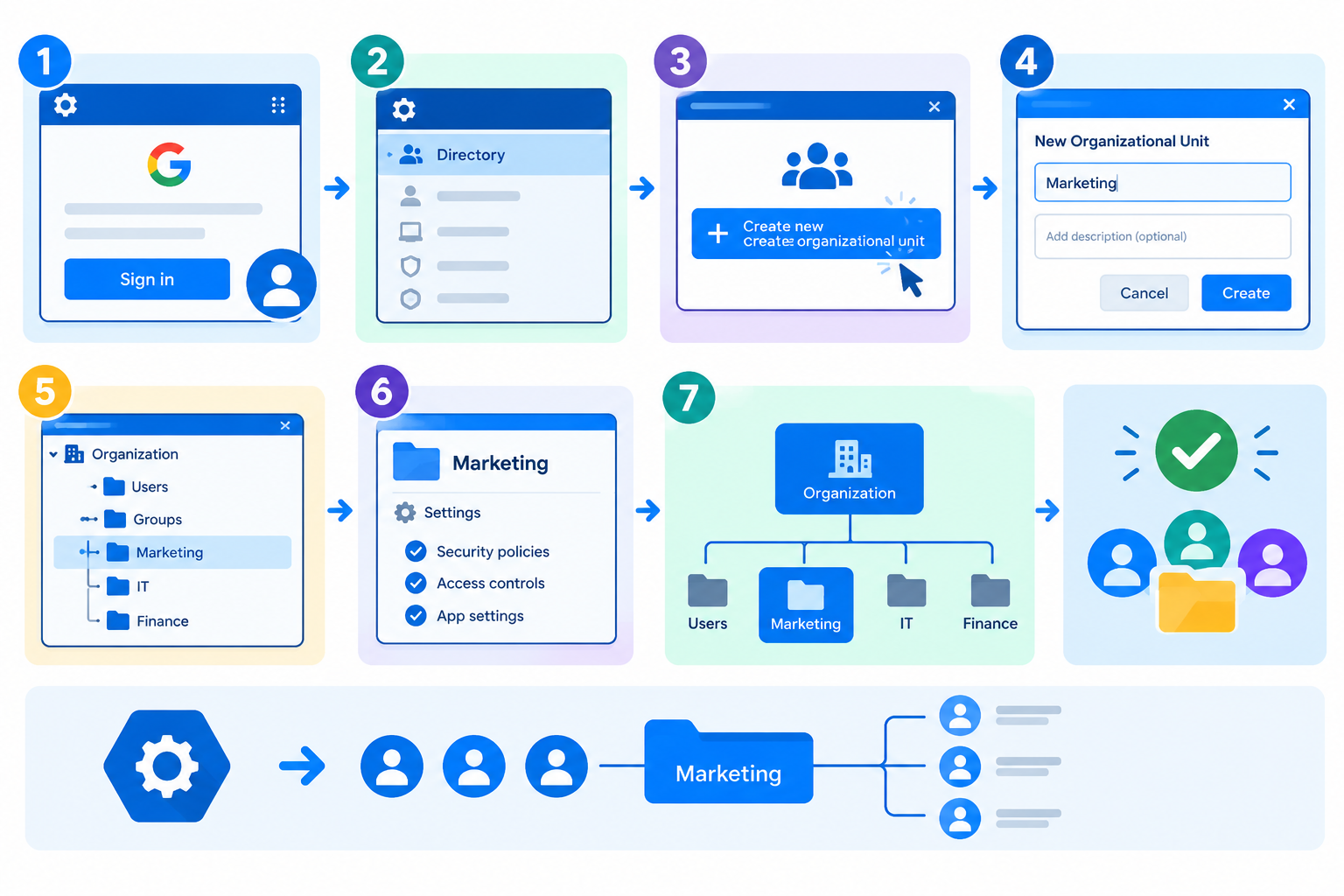
You can create an organizational unit from the Google Admin console.
After creating the OU, you can move the appropriate users into it and configure supported settings for that organizational unit.
Once users are organized into an OU, you can configure supported settings for that organizational unit.
The exact navigation depends on the Google Workspace service you are managing, but the general process is:
Not every Google Workspace setting uses the same configuration options, so check the available controls for the specific service.
Consider a Pakistani software company with two organizational units:
Organization
├── Employees
└── Interns
The company could use the Employees OU for its standard employee configuration and apply more restrictive settings to the Interns OU for supported services.
This allows administrators to manage users according to their administrative requirements without creating separate settings for every individual account.
Organizational units can have a parent-child relationship.
For example:
Organization
└── Employees
├── Finance
└── Sales
A child OU can inherit applicable settings from its parent OU. If a child OU requires a different configuration, an administrator can override the applicable setting where Google Workspace provides that option.
For example:
This inheritance model can reduce repetitive administration because common settings can be managed at a higher level.
When a setting supports these controls:
Inherit means the child OU uses the applicable setting from its parent.
Override means the child OU uses its own configuration instead of the inherited setting.
When troubleshooting an unexpected configuration, checking whether a setting is inherited or overridden can help identify why a user is receiving a particular policy.
Organizational units and Google Groups serve different administrative purposes.
Use an organizational unit when settings should generally follow a user’s organizational placement.
Use a configuration group when you need group-based configuration that can include users across different organizational units.
For settings that support both approaches, Google Workspace may give group-based configuration precedence over organizational-unit settings. The exact behavior depends on the service and setting.
This means administrators should check the specific setting before deciding whether an OU or group is the better approach.
Don’t create an OU simply because a department exists.
Create one when users need different administrative settings.
For example, if Finance and Sales use exactly the same Google Workspace configuration, there may be no need to create separate OUs just for those departments.
Avoid creating a deeply nested structure that becomes difficult to maintain.
A simple structure such as:
Organization
├── Employees
├── Contractors
└── Interns
may be easier to manage than multiple unnecessary levels.
Before applying a major configuration change to a large OU, test it with a smaller group where practical.
This helps identify unexpected effects before the change reaches more users.
When employees change departments or roles, review their organizational-unit placement.
A user’s OU can affect the settings they receive, so keeping OU membership accurate is important for consistent administration.
If a setting appears to be controlled by another configuration, check whether the OU is inheriting the setting from its parent.
This can prevent administrators from making unnecessary changes at the wrong level.
An OU structure with unnecessary departments and sub-departments can make policy management harder.
Create organizational units based on genuine differences in administrative requirements.
A child OU may receive settings from its parent. Always check inheritance before assuming that a configuration was set directly on the child OU.
Moving a user to another OU can change the settings that apply to the account.
Review the destination OU’s configuration before making large-scale user moves.
Google Workspace services have different configuration options. Don’t assume that every setting can be controlled in exactly the same way through an organizational unit.
Google Workspace changes can take time to propagate. Some changes may take up to 24 hours to take effect, although they often apply sooner.