
Need to separate Google Workspace users by department, role, or function? You can create Organizational Units (OUs) in the Google Admin Console and use them to organize users and apply different settings where needed.
For example, a software company might create OUs for Developers, Sales, HR, and Contractors, while a school could separate Teachers, Students, and Administrative Staff.
This guide explains how to create an Organizational Unit in Google Workspace, how to choose its parent OU, and what to consider before building your organizational structure.
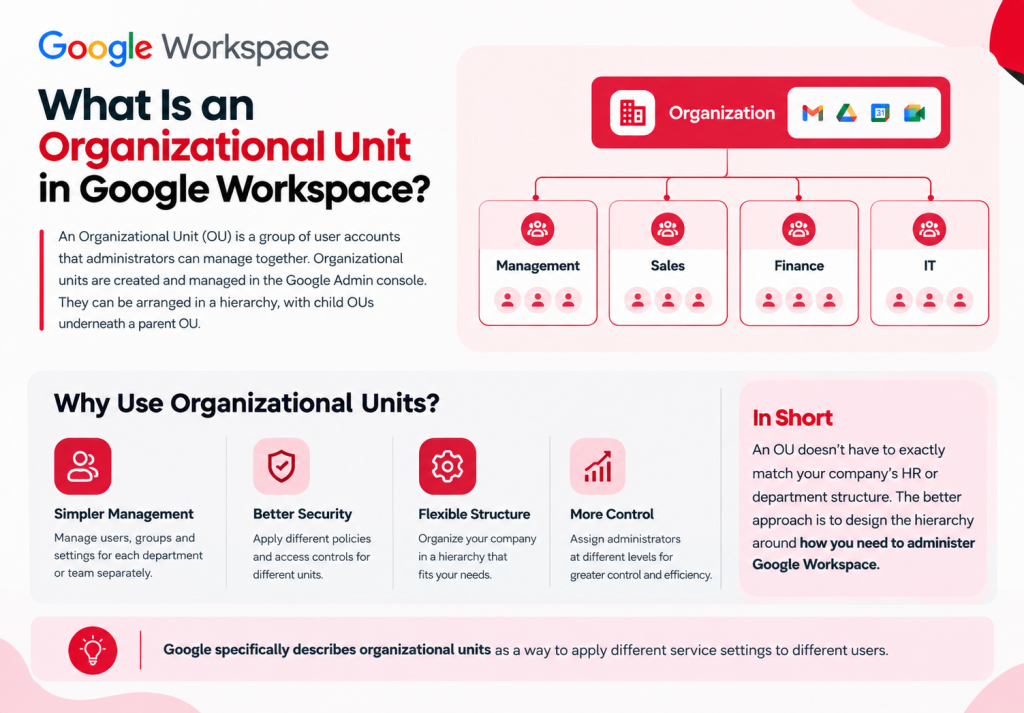
An Organizational Unit (OU) is a group within your Google Workspace organization that administrators can use to organize users and manage settings for them.
OUs are hierarchical. You can create a new OU under the main organization or under another existing OU.
For example:
Organization
├── Employees
│ ├── Sales
│ ├── Finance
│ └── HR
└── Contractors
This structure allows administrators to manage users according to their administrative needs.
Administrator tip: An OU does not have to exactly match your company’s organizational chart. Create separate OUs when users need different Google Workspace settings or policies.
Create an OU when a group of users needs to be managed differently from other users.
Common examples include:
You do not need a separate OU for every team or project.
If two departments require the same settings and administrative treatment, keeping them in the same OU may be simpler.
An Organizational Unit may not be necessary when:
For communication and collaboration, a Google Group may be more appropriate than creating another OU.
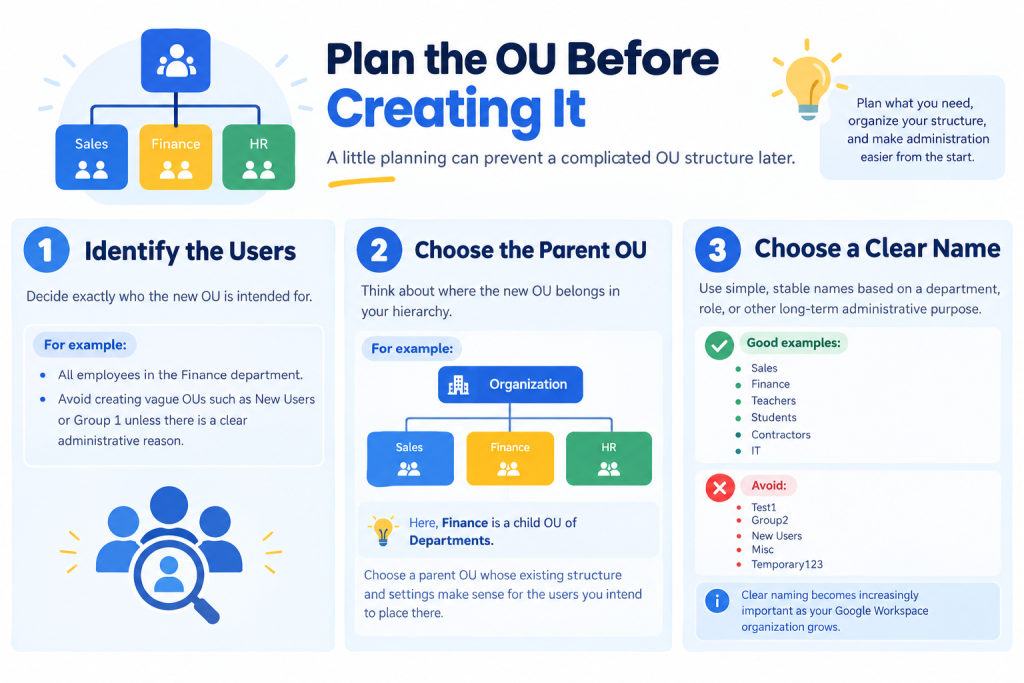
A little planning can prevent a complicated OU structure later.
Decide exactly who the new OU is intended for.
For example:
All employees in the Finance department.
Avoid creating vague OUs such as New Users or Group 1 unless there is a clear administrative reason.
Think about where the new OU belongs in your hierarchy.
For example:
Organization
└── Departments
├── Sales
├── Finance
└── HR
Here, Finance is a child OU of Departments.
Choose a parent OU whose existing structure and settings make sense for the users you intend to place there.
Use simple, stable names based on a department, role, or other long-term administrative purpose.
Good examples:
Avoid:
Clear naming becomes increasingly important as your Google Workspace organization grows.
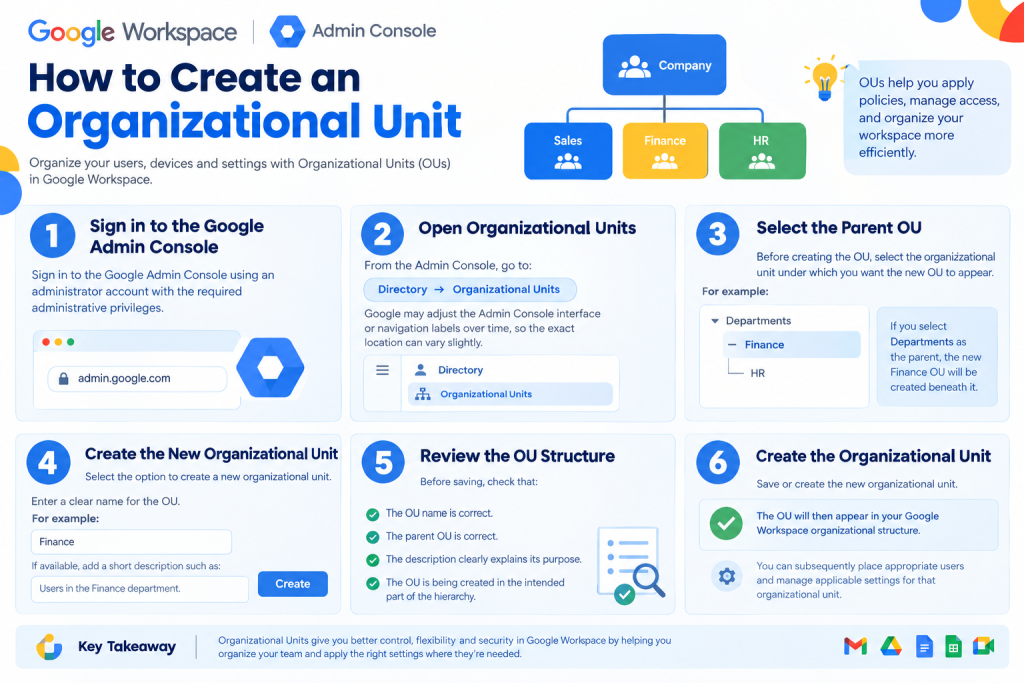
You can create an OU from the Google Admin Console.
Sign in to the Google Admin Console using an administrator account with the required administrative privileges.
From the Admin Console, go to:
Directory → Organizational units
Google may adjust the Admin Console interface or navigation labels over time, so the exact location can vary slightly.
Before creating the OU, select the organizational unit under which you want the new OU to appear.
For example:
Organization
└── Departments
└── Finance
If you select Departments as the parent, the new Finance OU will be created beneath it.
Choosing the correct parent is important because your OU structure is hierarchical.
Select the option to create a new organizational unit.
Enter a clear name for the OU.
For example:
Finance
If available, add a short description such as:
Users in the Finance department.
A description can help other administrators understand the purpose of the OU.
Before saving, check that:
Save or create the new organizational unit.
The OU will then appear in your Google Workspace organizational structure.
You can subsequently place appropriate users into the OU and manage applicable settings for that organizational unit.
Consider a Pakistani software company with developers, sales staff, HR employees, and contractors.
A simple structure could look like this:
Company
├── Employees
│ ├── Developers
│ ├── Sales
│ └── HR
└── Contractors
This structure separates users where administrative differences may exist while avoiding unnecessary OUs for every individual team or project.
For a school, a different structure might be more appropriate:
School
├── Teachers
├── Students
└── Administration
The best structure depends on how the organization needs to manage its Google Workspace users.
A school or college using Google Workspace for Education might organize users like this:
School
│
├── Administration
├── Teachers
└── Students
This can provide a clear administrative structure for managing different user populations.
For example, if a supported Google Workspace setting needs to differ between teachers and students, administrators can configure the relevant OUs separately.
For more specific groups of users that cross these boundaries, configuration groups may sometimes be a better fit.
Organizational Units can have a parent-child relationship.
For example:
Organization
└── Employees
├── Sales
└── Finance
Here:
This hierarchy matters because settings can be inherited through the organizational structure.
Therefore, choosing the correct parent OU is an important part of creating a new OU.
You don’t need to understand every Google Workspace policy before creating an OU, but you should consider what settings users should inherit from their parent.
Creating the OU is only the first step.
Depending on your administrative requirements, you can then:
These tasks are separate from creating the OU itself and should be handled according to your organization’s administration plan.
Organizational Units and Google Groups serve different purposes.
Purpose | Organizational Unit | Google Group |
Organize users administratively | Yes | No |
Apply administrative settings | Yes | No |
Create email/discussion lists | No | Yes |
Collaboration and communication | Limited | Yes |
Organize users for policy management | Yes | No |
A simple rule is:
Use an OU for administration and policy management. Use a Google Group for communication, collaboration, or access.
For example, if the Finance team needs different Google Workspace settings, an OU may be appropriate. If the Finance team simply needs a shared email address, a Google Group may be a better choice.
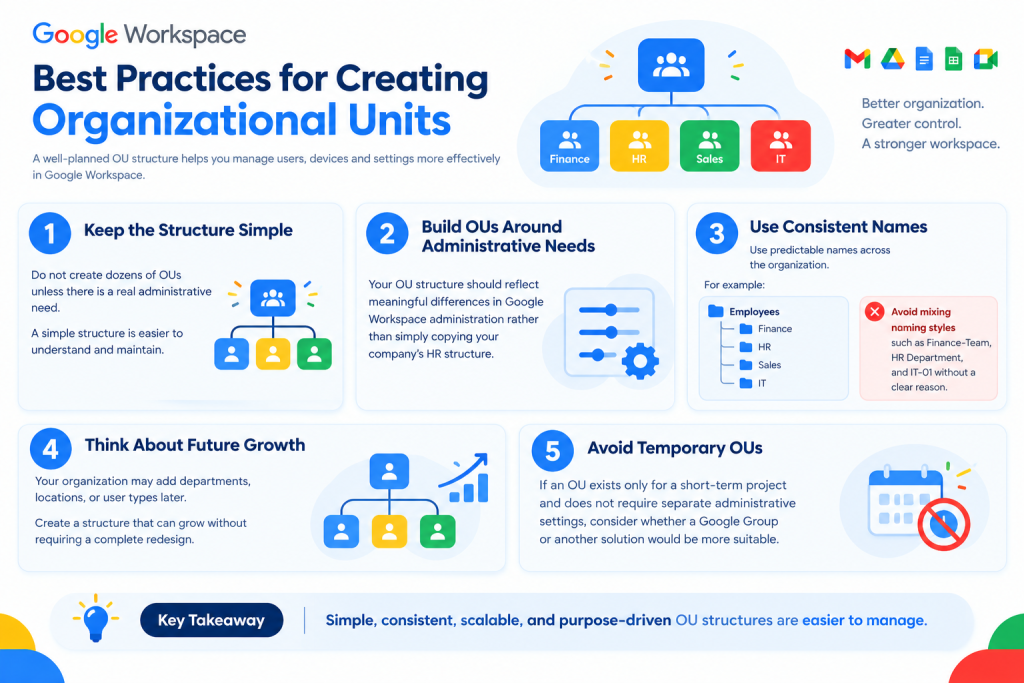
Do not create dozens of OUs unless there is a real administrative need.
A simple structure is easier to understand and maintain.
Your OU structure should reflect meaningful differences in Google Workspace administration rather than simply copying your company’s HR structure.
Use predictable names across the organization.
For example:
Employees
├── Finance
├── HR
├── Sales
└── IT
Avoid mixing naming styles such as Finance-Team, HR Department, and IT-01 without a clear reason.
Your organization may add departments, locations, or user types later.
Create a structure that can grow without requiring a complete redesign.
If an OU exists only for a short-term project and does not require separate administrative settings, consider whether a Google Group or another solution would be more suitable.
More OUs do not automatically mean better administration.
Create them when there is a meaningful difference in how users need to be managed.
Placing an OU under the wrong parent can make your hierarchy confusing and affect how settings are inherited.
Always review the parent OU before creating the new one.
Names such as Test, Group1, or Misc become difficult to understand when multiple administrators manage the organization.
An OU is not simply another type of email group. Its main purpose is administrative organization and policy management.
Yes. You can create an OU under an existing organizational unit to build a hierarchical structure.
Choose the parent OU based on how the new users should be organized and what settings or policies they should inherit.
Yes. After creating the OU, administrators can place appropriate users into it.
No. Create separate OUs when departments or user groups need different administrative settings or policies. If they can be managed the same way, a separate OU may not be necessary.
No. OUs and Groups serve different purposes. OUs are primarily for administrative organization and policy management, while Groups are commonly used for communication, collaboration, and access.
Yes. You can create multiple OUs and organize them into a hierarchy that fits your organization's administrative requirements.
Creating an Organizational Unit in Google Workspace is straightforward, but planning the structure before creating it is important.
A good approach is to:
Keep your OU structure simple and build it around real administrative needs, not just the way your organization is shown on an internal chart.

As G Suite resellers in Pakistan, we offer great prices on tools that improve communication, enhance teamwork, and provide strong security. Boost your business efficiency with us today!
97-C OPF Society, Khayaban-e-Jinnah Road, Lahore, Pakistan
Copyright © 2025 gworkspacepartner.pk All Rights Reserved.
WhatsApp us