
Managing user accounts is one of the most important responsibilities of a Google Workspace administrator. Every time a new employee joins your company, a staff member changes roles, or someone leaves the organization, you’ll need to update their Google Workspace account accordingly.
This guide focuses specifically on how to add, edit, suspend, and remove users in Google Workspace. If you’re new to administration and need a broader understanding of the platform, see our Google Workspace Admin Console pillar guide for a complete overview.
Whether you’re managing a small startup, a school, an NGO, or a growing enterprise in Pakistan, having a consistent user management process helps improve security, productivity, and operational efficiency.
A Google Workspace account is more than just an email address. It often provides access to company emails, Google Drive files, calendars, contacts, shared resources, and collaboration tools.
Poor user management can result in:
A structured process ensures every user account is created, maintained, and removed correctly.
Before creating a user account, gather the following information:
You should also verify that the person responsible for creating accounts has the necessary administrator permissions.
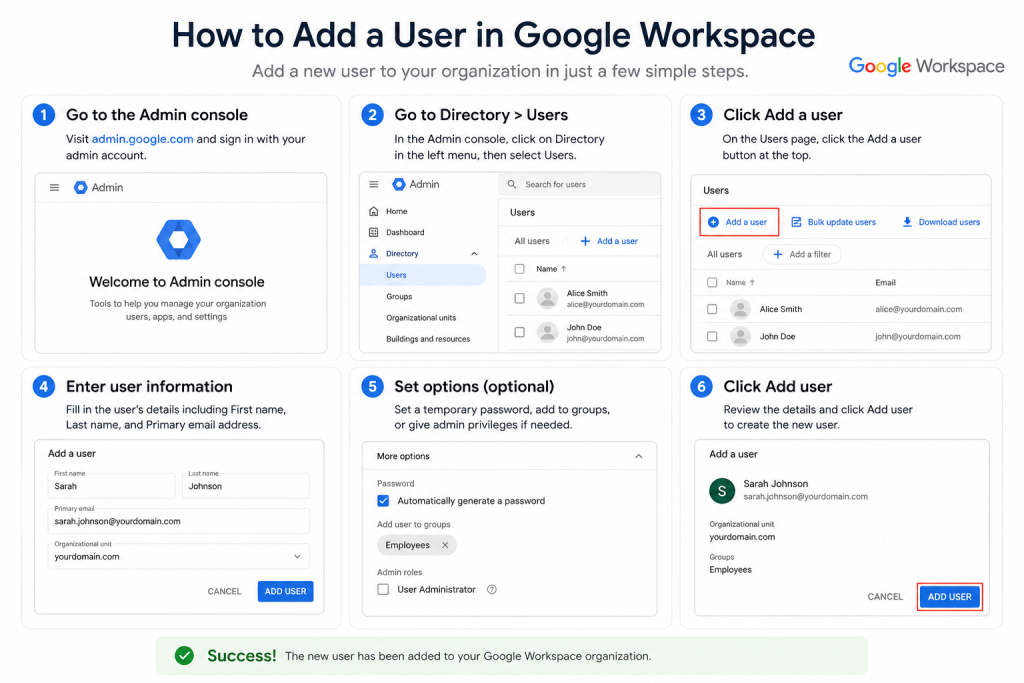
Creating a new user account gives an employee access to your organization’s Google Workspace environment.
Sign in to the Google Admin Console using an administrator account.
Navigate to:
Directory → Users
This area contains all user accounts within your organization.
Google Admin Console → Directory → Users
Select Add New User.
A form will appear where you can enter the user’s details.
Add New User Form
Complete the required fields:
You may also add optional details such as:
When selecting an email address, use a naming convention that remains consistent across your organization.
Examples:
Consistency makes future administration easier.
Depending on your organization’s Google Workspace configuration, licenses may be:
Verify that the user has received the appropriate license before completing onboarding.
Click Add User to create the account.
The account becomes available immediately.
Share temporary login credentials through a secure communication method and require the user to change their password after signing in.
New User Created Successfully Screen
Many organizations create employee accounts one or two days before the employee’s first working day. This gives administrators time to configure licenses, email signatures, shared resources, and account settings before the user logs in.
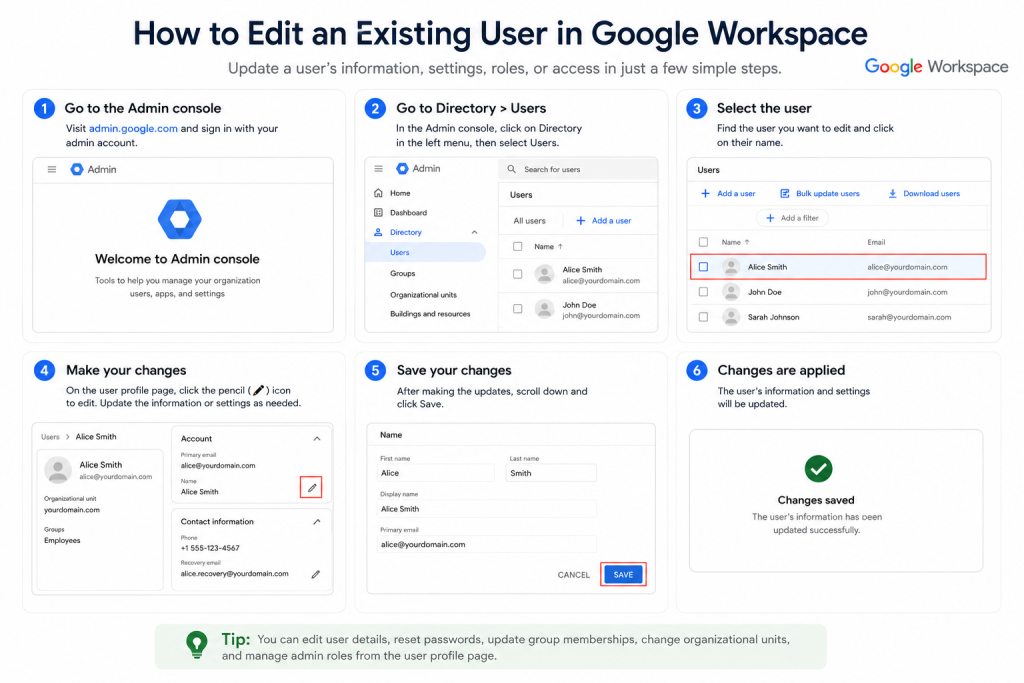
Employee information changes over time. Keeping user records updated helps maintain an accurate company directory and improves administrative efficiency.
Common reasons for editing a user include:
Go to:
Directory → Users
Search for the employee whose information you want to update.
Click the user’s name.
The profile page contains various account settings and user information.
Google Workspace User Profile Page
Modify the necessary fields.
Examples include:
After making changes, click Save.
Changes typically take effect quickly across Google Workspace services.
Password reset requests are among the most common administrative tasks.
To reset a password:
Require the user to create a new password during their next sign-in.
Reset Password Dialog Box
If your organization uses Single Sign-On (SSO) with a third-party identity provider, password management may occur outside Google Workspace. In such environments, password resets may need to be performed through the organization’s identity provider.
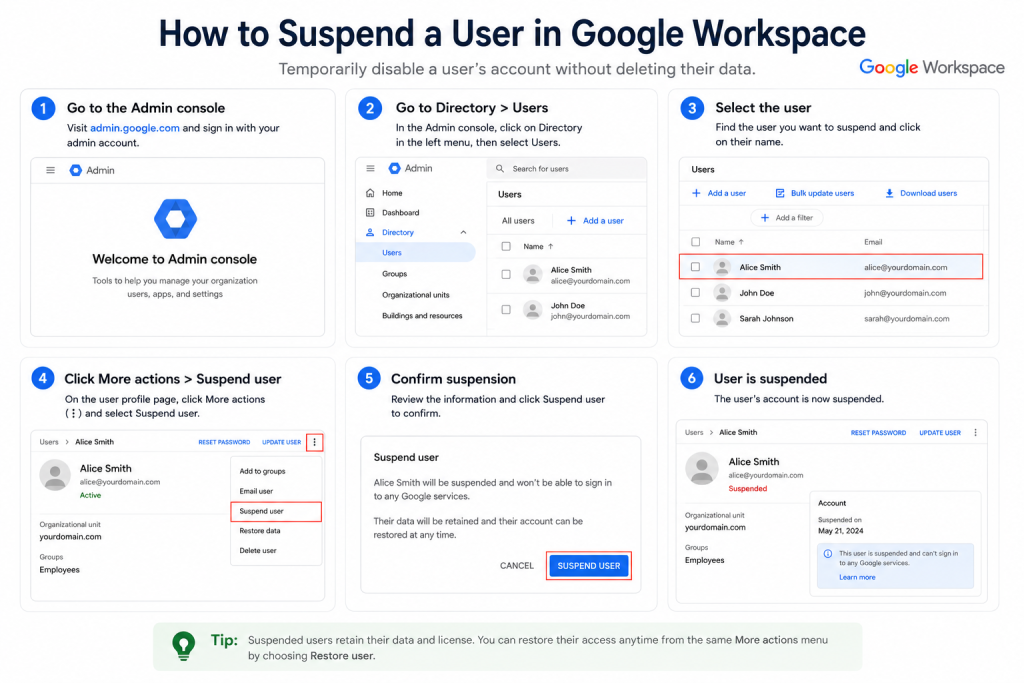
Suspending a user temporarily blocks account access without deleting account data.
Suspension is useful when:
The user can no longer sign in, but account data remains intact.
Suspend User Confirmation Window
A common offboarding practice is to suspend an account first.
This provides time to:
Only after these tasks are complete should permanent deletion be considered.
When an employee permanently leaves the organization, deleting the account may be appropriate.
However, administrators should first review any business data associated with the user.
Check whether the user owns:
Transferring ownership beforehand helps prevent disruption to the organization.
Delete User Confirmation Screen
In most Google Workspace editions, deleted users can usually be restored within approximately 20 days after deletion.
After that period, recovery is generally no longer possible.
Because of this, many administrators suspend accounts first before permanently removing them.
Situation | Recommended Action |
Employee on annual leave | Keep active |
Long-term leave | Suspend |
Temporary contractor | Suspend |
Employee resignation | Suspend, then delete |
Permanent account removal | Delete |
Choosing the correct action helps balance security and business continuity.
Most organizations follow a predictable user lifecycle.
The employee joins the organization and receives a new Google Workspace account.
Administrators assign the appropriate license and account settings.
User information is updated as employees change departments, roles, or contact details.
When the employee leaves, access is suspended and business data is reviewed.
After ownership transfers and reviews are complete, the account is deleted if necessary.
Following this lifecycle reduces security risks and administrative errors.
Even experienced administrators occasionally make mistakes.
Common issues include:
Developing documented procedures helps prevent these problems.
Effective user management becomes increasingly important as an organization grows.
Recommended practices include:
These practices help keep your Google Workspace environment organized and secure.
As your Google Workspace environment grows, you may also need to perform tasks such as:
Each of these topics deserves its own dedicated guide and should be managed separately from basic user administration.
Yes. Google Workspace supports bulk user creation through CSV imports, which is useful when onboarding many employees.
Yes. Administrators can update user profile information, including display names and organizational details.
For temporary situations, yes. Suspension preserves account data while preventing access.
Files may become inaccessible if ownership is not transferred first. Always review and transfer important business data before deleting accounts.
In many Google Workspace editions, deleted users can usually be restored within approximately 20 days after deletion.
Knowing how to add, edit, and remove users in Google Workspace is a fundamental skill for every administrator. A structured user management process helps organizations maintain security, improve operational efficiency, and ensure employees have the access they need throughout their time with the organization.
For businesses, schools, software houses, NGOs, and enterprises across Pakistan, implementing consistent onboarding and offboarding procedures can significantly reduce administrative overhead and security risks.
If your organization needs assistance with Google Workspace deployment, licensing, administration, or ongoing support, gworkspacepartner.pk can help with professional guidance tailored to your business requirements.

As G Suite resellers in Pakistan, we offer great prices on tools that improve communication, enhance teamwork, and provide strong security. Boost your business efficiency with us today!
97-C OPF Society, Khayaban-e-Jinnah Road, Lahore, Pakistan
Copyright © 2025 gworkspacepartner.pk All Rights Reserved.
WhatsApp us