
Organizational units (OUs) in Google Workspace help administrators organize users into a hierarchy and apply different supported settings to different users.
For example, a business could place its Sales, Finance, and IT users in separate OUs. A school could separate teachers, students, and administrative staff.
The important point is that an OU is more than a folder for users. It provides a way to manage users according to different administrative requirements.
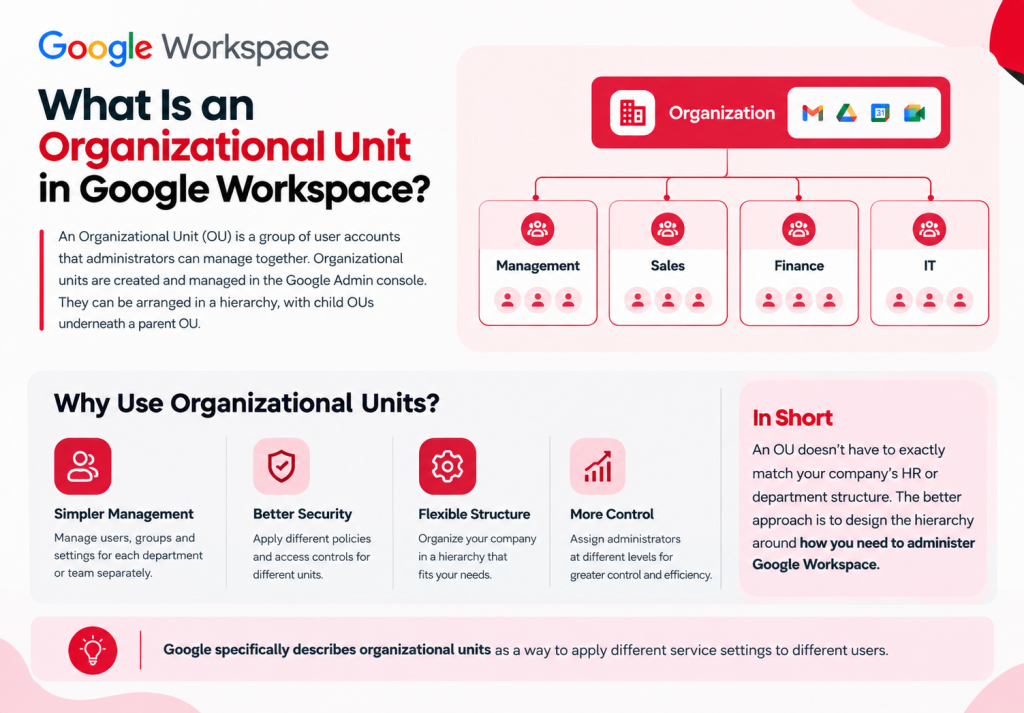
A Google Workspace organizational unit is a group of user accounts that administrators can manage together.
Organizational units are created and managed in the Google Admin console. They can be arranged in a hierarchy, with child OUs underneath a parent OU.
For example:
Organization
│
├── Management
├── Sales
├── Finance
└── IT
An organization can also create a hierarchy when that makes administration easier:
Organization
│
├── Employees
│ ├── Sales
│ ├── Finance
│ └── IT
│
└── Contractors
An OU does not have to exactly match your company’s HR or department structure. The better approach is to design the hierarchy around how you need to administer Google Workspace.
Google specifically describes organizational units as a way to apply different service settings to different users.
The main reason to use OUs is to apply supported Google Workspace settings to one set of users without necessarily applying the same configuration to everyone.
For example, a company might need different settings for its Sales and Finance teams.
A Pakistani software company could have:
Company
│
├── Sales
├── Accounts
├── Engineering
└── Management
If Sales users need a different supported Google Workspace configuration, the administrator can target the Sales OU rather than configuring every Sales account individually.
Depending on the service and setting, OUs can be used to customize settings for specific users or departments.
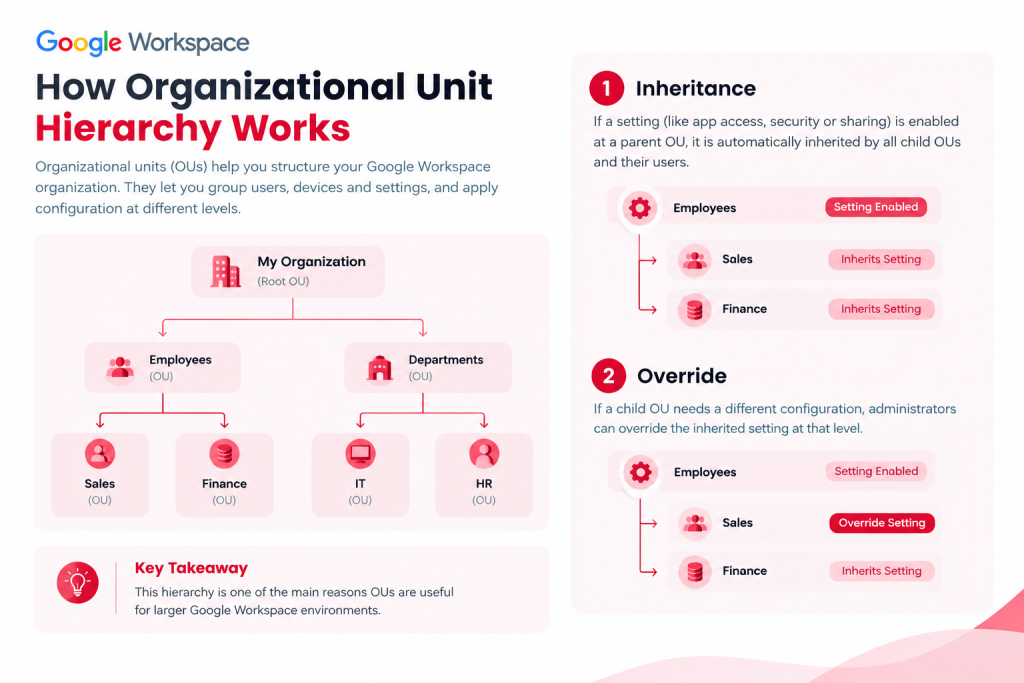
Google Workspace organizational units use a parent-and-child structure.
For example:
Employees
│
├── Sales
└── Finance
The Sales and Finance OUs are children of the Employees OU.
Child organizational units normally inherit applicable settings from their parent. Administrators can then override a setting for a child OU when it needs a different configuration.
For example:
Employees
│
├── Sales → Inherits setting
└── Finance → Overrides setting
If Employees has a particular setting enabled, Sales can inherit that configuration while Finance can have its own value.
In the Admin console, Google identifies these states as Inherited and Overridden. Selecting Inherit restores the parent value, while Override allows the child OU to use a different setting.
This hierarchy is one of the main reasons OUs are useful for larger Google Workspace environments.
An important distinction is that an OU is not itself a permission system.
Simply placing a user into an organizational unit does not automatically give that user access to resources or remove all of their permissions.
Instead, the OU provides a structure that can be used to apply supported Google Workspace settings.
What changes for a user depends on the specific service and setting being configured.
This distinction is important because an administrator should not think of an OU as the equivalent of an access-control list.
Organizational units and Google Groups serve different purposes.
Organizational Units | Google Groups |
Organize users into an administrative hierarchy | Organize users for communication, collaboration, or group-based use cases |
Usually reflect stable administrative requirements | Can include users from different departments |
Support inherited and overridden settings | Can be used for more targeted configuration in supported settings |
A user is assigned within the OU hierarchy | A user can belong to multiple groups |
For example, suppose a company has:
Sales
Finance
IT
Marketing
The company could use these as OUs because they represent stable administrative areas.
But suppose the administrator needs to apply a setting to selected employees from Sales, Finance, and IT.
Creating another OU for those users may not make sense. A configuration group may be more appropriate for supported settings because groups can target users across or within organizational units.
Google notes that for supported service settings, group settings override organizational-unit settings.
Use an OU when the requirement is based on your administrative structure.
Use a Group when the requirement is based on a particular set of users who may span different organizational units.
The exact capabilities depend on the Google Workspace setting being configured.
Create a new OU when users need a different administrative configuration that makes sense as part of your organization’s structure.
Good examples include:
You generally do not need a separate OU just because two users have different job titles.
The question to ask is:
Do these users need different Google Workspace settings or administration?
If the answer is no, creating another OU may only add unnecessary complexity.
A school or college using Google Workspace for Education might organize users like this:
School
│
├── Administration
├── Teachers
└── Students
This can provide a clear administrative structure for managing different user populations.
For example, if a supported Google Workspace setting needs to differ between teachers and students, administrators can configure the relevant OUs separately.
For more specific groups of users that cross these boundaries, configuration groups may sometimes be a better fit.
Build your OU structure around how you manage Google Workspace rather than trying to reproduce every detail of your company’s organizational chart.
Too many nested OUs can make administration harder. Create a new OU when it provides a real administrative benefit.
If several child OUs should use the same configuration, allow them to inherit the parent setting instead of creating unnecessary overrides.
If selected users from different OUs need the same supported configuration, consider a configuration group instead of creating another OU. Google supports groups as an alternative targeting method for many settings.
Before applying a major configuration change to a large OU, test it with a smaller set of users where practical.
An OU should solve an administrative problem. Don’t create one for every small difference between users.
OUs organize users and provide a way to target supported settings. They are not a general-purpose permission system.
Before changing a setting, check whether the OU is inheriting the value from its parent or has an override in place.
If users from several departments need the same configuration, a group may be more suitable than restructuring the OU hierarchy.
An OU, or organizational unit, is a group of user accounts arranged within an administrative hierarchy. Administrators can use OUs to apply supported Google Workspace settings to different sets of users.
Yes. Google Workspace supports parent and child organizational units, allowing administrators to build a hierarchical structure.
No. A user account is assigned within the organizational-unit hierarchy. If the same user needs to be targeted alongside users from other OUs, a Google Group or configuration group may be more appropriate for supported settings.
No. An OU does not automatically grant or remove permissions simply because a user belongs to it. Its effect depends on the specific Google Workspace setting being configured.
No. OU-based configuration depends on the specific service and setting. Google supports organizational-unit targeting for many service settings, but not every setting uses the same configuration model.
Yes. Child OUs normally inherit applicable settings from their parent. Administrators can override individual settings when a child OU requires a different configuration.
Google Workspace organizational units provide a structured way to organize users and manage supported settings across different parts of an organization.
A well-designed OU hierarchy can make administration easier by allowing common settings to be inherited while giving administrators the option to override settings for specific user populations.
The best approach is to keep the structure simple and create OUs around genuine administrative requirements. When users from different OUs need the same supported configuration, a Google Group or configuration group may be a better solution.

As G Suite resellers in Pakistan, we offer great prices on tools that improve communication, enhance teamwork, and provide strong security. Boost your business efficiency with us today!
97-C OPF Society, Khayaban-e-Jinnah Road, Lahore, Pakistan
Copyright © 2025 gworkspacepartner.pk All Rights Reserved.
WhatsApp us