
Google Workspace Marketplace apps let businesses in Pakistan extend Gmail, Drive, and Calendar with extra tools — from e-signature apps to project trackers. But once employees start installing apps on their own, admins can lose track of what has access to company data.
This guide shows Google Workspace admins exactly how to control which Marketplace apps get installed, who can install them, and how to remove apps that are no longer needed.
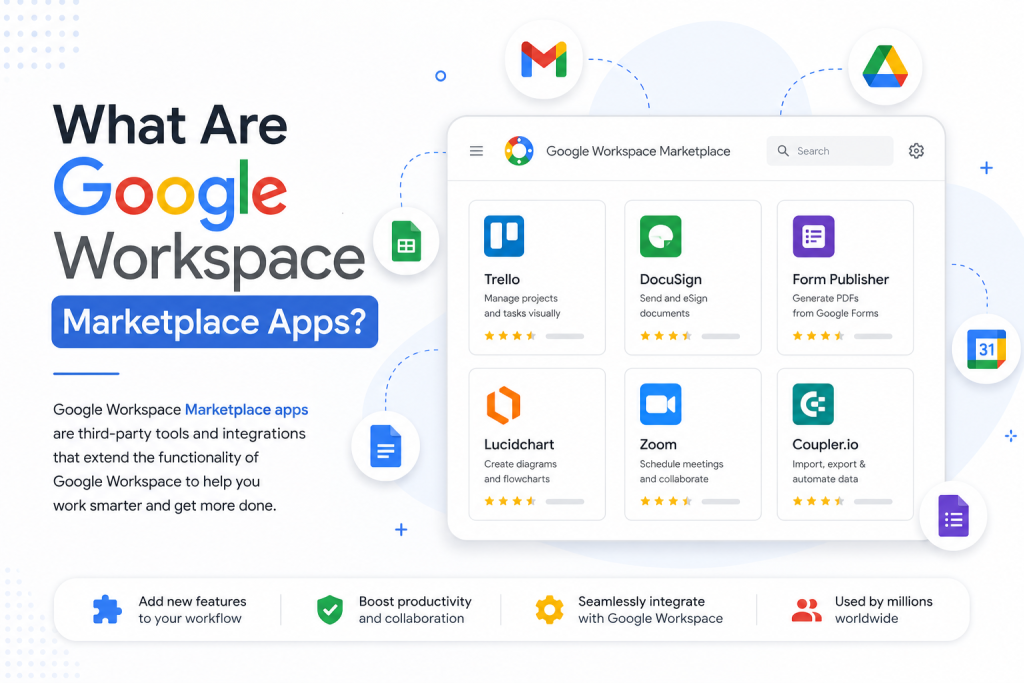
The Google Workspace Marketplace is Google’s official app store for Workspace add-ons. It includes apps built by Google, verified third-party vendors, and independent developers. Users can install these apps directly into Gmail, Docs, Sheets, or Calendar to add features Google Workspace doesn’t offer out of the box.
Because these apps often request access to company email, files, or calendar data, managing them is a core part of keeping a Workspace domain secure.
Marketplace app management is closely related to, but not the same as, controlling OAuth access for third-party apps in general. Marketplace apps are just one category of app that can request access to your domain. For a deeper look at reviewing and revoking OAuth-based data access across all connected apps, see Manage Third-Party App Permissions in Google Workspace.
As an admin, you’ll typically manage Marketplace apps when:
Google updates the Admin console layout from time to time, so menu names and paths described below may shift slightly. If a setting isn’t exactly where this guide says, use the Admin console’s search bar and type the setting name — it will take you straight there.
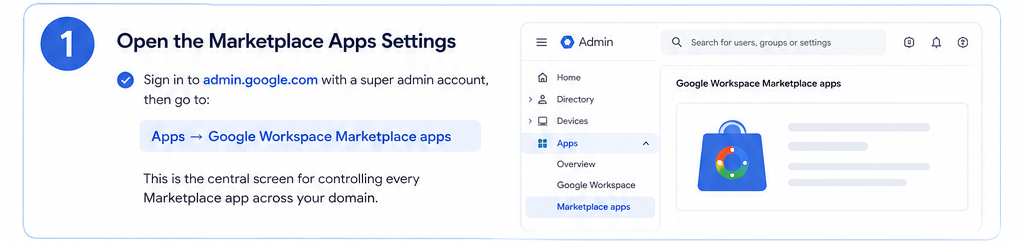
Sign in to admin.google.com with a super admin account, then go to:
Apps → Google Workspace Marketplace apps
This is the central screen for controlling every Marketplace app across your domain.
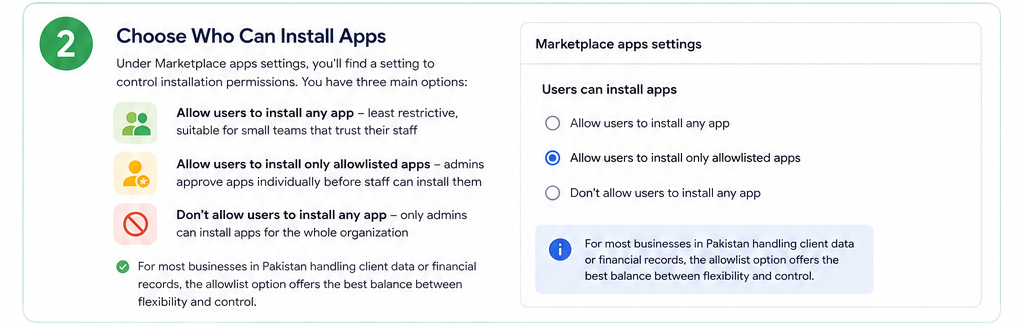
Under Marketplace apps settings, you’ll find a setting to control installation permissions. You have three main options:
For most businesses in Pakistan handling client data or financial records, the allowlist option offers the best balance between flexibility and control.
If you’ve chosen the allowlist option:
Once allowlisted, users across the domain (or a selected organizational unit) can install that app without needing individual admin approval each time.
To roll out an app to every employee at once — useful for tools like e-signature or helpdesk apps used organization-wide — search for the app in the Marketplace apps screen, select it, and choose the install option for your entire domain or for specific organizational units. Confirm the requested permissions before finishing the install.
Not every team needs the same apps. A finance team may need an invoicing add-on, while sales only needs a CRM connector. Use organizational units (OUs) to scope app access:
This keeps app sprawl limited to the teams that actually need each tool.
To remove an app that’s no longer needed or poses a security risk, find it in your list of installed apps and uninstall it.
It’s important to understand what uninstalling actually does:
To fully cut off a user-installed app’s access, you may also need to review and revoke its OAuth token directly, either per user or across the domain. This is covered in more detail in the separate article on managing third-party app permissions linked above.
Every Marketplace app lists the data it wants to access before a user installs it. Not all permissions carry the same risk. As a rule of thumb:
Higher-risk scopes — review these carefully before allowlisting:
Lower-risk scopes — generally safer to approve:
If an app requests a high-risk scope that doesn’t match its stated purpose — for example, a simple scheduling tool asking for full Gmail access — treat that as a red flag and investigate further before approving it.
A simple lifecycle keeps app approvals consistent instead of ad-hoc:
Following this cycle prevents the common problem of apps being approved once and never reviewed again.
Run through this quickly before adding any app to your allowlist:
Yes. The Marketplace apps section of the Admin console lists every app installed domain-wide, along with its install date and status.
Yes. Allowlisting only means the user is allowed to install the app — they'll still see and approve the specific permissions the app requests.
Yes, using organizational units. You can apply different Marketplace rules to different OUs within the same domain.
Users can no longer install it going forward, but existing user-installed copies aren't automatically removed — you'll need to uninstall or revoke access to those separately.
Not exactly. Marketplace app management controls installation and allowlisting; OAuth app access control governs what data any connected app — Marketplace or not — can access. See our guide on third-party app permissions for that separate process.

As G Suite resellers in Pakistan, we offer great prices on tools that improve communication, enhance teamwork, and provide strong security. Boost your business efficiency with us today!
97-C OPF Society, Khayaban-e-Jinnah Road, Lahore, Pakistan
Copyright © 2025 gworkspacepartner.pk All Rights Reserved.
WhatsApp us