
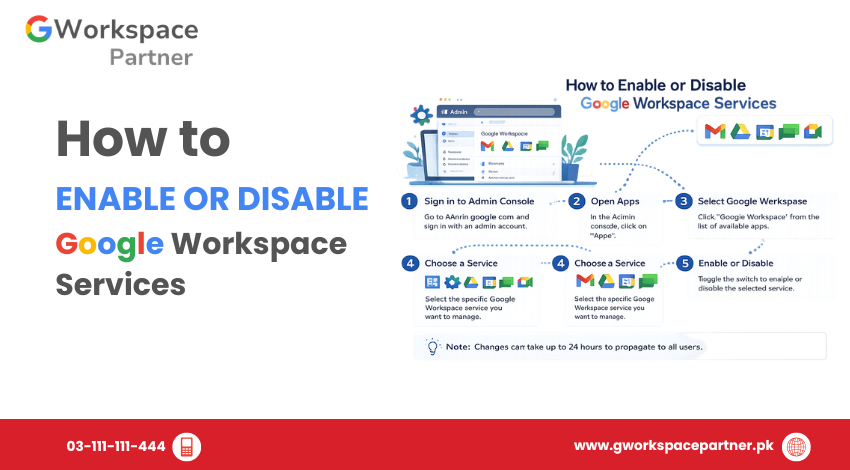
Google Workspace administrators can control which apps and core services are available to users through the Google Admin Console. Services such as Gmail, Google Drive, Google Meet, Google Calendar, and Google Chat can be enabled or disabled based on organizational requirements.
This allows businesses, schools, NGOs, and enterprises to provide users with the right tools while maintaining better control over their Google Workspace environment.
For most organizations, service settings should be managed through Organizational Units (OUs) instead of changing access for the entire company. This makes it easier to apply different settings for different teams.
Before you delete a user, it’s important to transfer any valuable information to another employee or back it up if needed. This helps your organization keep access to important documents, customer communications, and shared resources.
In this guide, you’ll learn what data should be transferred, what Google Workspace allows you to move, and how to prepare an account for safe deletion without risking important business information.
Before changing service settings, review the following:
A planned approach prevents accidental disruption to daily business operations.
When a Google Workspace service is enabled, users can access that application using their organization account.
When a service is disabled, users cannot access that application through their Google Workspace account.
Administrators can control services:
Disabling a service generally removes access but does not automatically delete existing user data.
Organizations manage service access for different operational and security reasons.
Common examples include:
A company with remote employees may enable Google Meet so teams can conduct online meetings and collaboration sessions.
A business may restrict Google Chat access for certain departments that do not require internal messaging.
Organizations may disable services that are not needed to simplify administration and reduce unnecessary access.
A software company may allow developers and managers to use different Google Workspace apps based on their workflow.
Follow these steps to change service access:
Sign in using an administrator account with permission to manage Google Workspace services.
Only authorized administrators should modify service settings.
From the Admin Console:
Available services may include:
After opening the required service:
ON for everyone
Enables the service for all users in the organization.
OFF for everyone
Disables the service completely.
ON or OFF for some users
Allows different settings for specific organizational units.
Changes may take some time to apply.
For growing organizations, managing services through Organizational Units is usually the best approach.
An Organizational Unit allows administrators to apply different Google Workspace settings to different groups.
For example:
Company Structure
Organization
│
├── Management
│
├── Sales Team
│
├── Developers
│
└── Interns
A company can:
To apply settings:
The selected users will receive the updated access settings.
Applying changes to the entire organization can affect every user. Organizational Units provide better control and flexibility.
Before disabling an app, confirm whether teams rely on it for communication, collaboration, or daily operations.
For important changes:
Only trusted administrators should have permission to modify Google Workspace service settings.
Too many administrators increase the risk of accidental configuration changes.
Some users may depend on services such as Drive, Calendar, or Meet for daily work.
Always review usage before disabling access.
A company-wide change can affect thousands of users.
Use Organizational Units whenever different teams require different services.
Turning off a service usually blocks access. It does not immediately remove stored data.
When creating new users, check whether their assigned organizational unit has the correct service settings.
Yes. Administrators can disable Gmail while keeping other services such as Drive, Meet, and Calendar enabled.
It can. If the user owns files that haven't been transferred to another account, those files may eventually be deleted. Always transfer ownership first.
Disabling a service usually prevents users from accessing it. Existing data is not automatically deleted.
Administrators with the required Google Workspace permissions can manage service settings from the Admin Console.
Most changes apply within a short time, but some updates may require additional time before all users see the change.
Deleting a Google Workspace user account is more than just removing a name from your organization. It’s the final step in an employee offboarding process that should begin with reviewing and transferring important business data.
Before deleting any account, make sure Google Drive files have a new owner, important Gmail emails have been migrated or backed up, calendars and contacts have been reviewed, and any shared resources remain accessible to the rest of your team. Spending a little extra time preparing can prevent permanent data loss and keep your business running smoothly.
By following the steps in this guide, Google Workspace administrators can confidently delete user accounts while protecting valuable business information.
Managing Google Workspace services allows administrators to control which apps users can access. Through the Google Admin Console, organizations can enable or disable services such as Gmail, Drive, Meet, and Chat for everyone or specific user groups.
For businesses using Google Workspace in Pakistan, managing services through Organizational Units provides better security, flexibility, and control as the organization grows.

As G Suite resellers in Pakistan, we offer great prices on tools that improve communication, enhance teamwork, and provide strong security. Boost your business efficiency with us today!
97-C OPF Society, Khayaban-e-Jinnah Road, Lahore, Pakistan
Copyright © 2025 gworkspacepartner.pk All Rights Reserved.
WhatsApp us