
Google Workspace bundles many apps together — Gmail, Drive, Calendar, Meet, Chat, and more. But not every business needs every app turned on the same way for every team. That’s where individual service configuration comes in.
This guide shows you how to configure individual Google Workspace services from the Admin console, so each app behaves exactly the way your organization needs.
This article covers: turning services on or off, applying settings to specific organizational units (OUs), and configuring the most commonly adjusted services.
This article does not cover: setting up Google Workspace for the first time, creating users, or configuring domain-wide security policies — those are covered in separate guides.
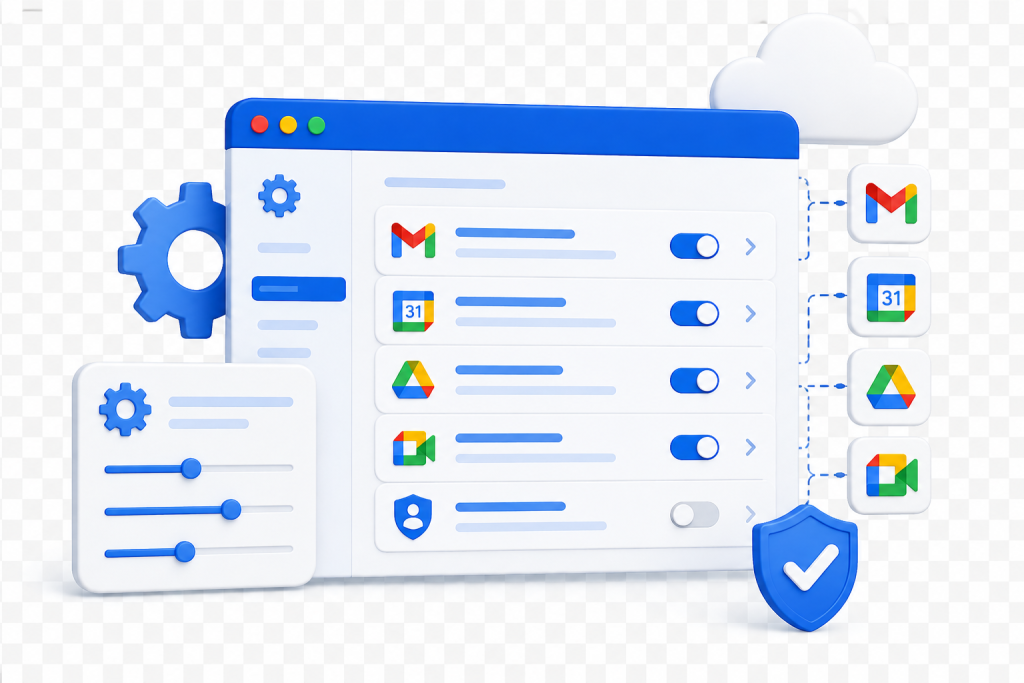
Every app inside Google Workspace — Gmail, Drive, Meet, Calendar, Chat, Sites, and others — is technically a separate “service” inside the Admin console. Each one has its own settings panel.
Configuring an individual service means going into that specific app’s settings and adjusting things like:
This is different from general Admin console setup, which covers account-wide settings like billing, domain verification, or security policies.
Most Pakistani businesses using Google Workspace don’t need identical settings across every department. A few common situations call for individual service configuration:
If your organization has more than one team, department, or user type, individual service configuration is usually necessary rather than optional.
Go to admin.google.com and sign in with an administrator account. Only super admins or delegated admins with app-management rights can change service settings.
From the Admin console home page, click Apps, then select Google Workspace. This shows a list of every core service — Gmail, Drive and Docs, Calendar, Meet, Chat, Sites, and more.
Click on the specific app you want to adjust. For example, click Gmail to open Gmail-specific settings, or Meet to open video conferencing settings.
Before changing anything, check the panel on the left. You can apply settings to:
Select the correct OU or group before editing settings, so changes only apply where intended.
Each service has different configurable options. A few examples:
Gmail
Google Drive and Docs
Google Meet
Google Calendar
Make the changes needed for the selected OU or group.
Click Save. Most service changes apply within minutes, although Google notes that some settings can take up to 24 hours to propagate throughout the organization.
Log in as a test user (or ask a team member) in the affected OU to confirm the setting behaves as expected before rolling it out organization-wide.
Yes. You can apply most service settings to an existing Google Group instead of an organizational unit, which is faster for one-off cases.
No. Turning individual services on or off does not change your Google Workspace subscription cost.
Yes, at the top-level organizational unit (also called the root OU). This is common for apps a business doesn't use, such as Currents or Sites, to reduce clutter in the app launcher.
Most service changes apply within minutes, although Google notes that some settings can take up to 24 hours to propagate throughout the organization.
Configuring individual Google Workspace services lets you match each app’s behavior to how your teams actually work, instead of applying one-size-fits-all settings. By working through the Admin console’s Apps section, selecting the right organizational unit, and testing changes before a full rollout, Pakistani businesses, schools, and NGOs can keep Gmail, Drive, Meet, and Calendar running exactly the way each department needs.

As G Suite resellers in Pakistan, we offer great prices on tools that improve communication, enhance teamwork, and provide strong security. Boost your business efficiency with us today!
97-C OPF Society, Khayaban-e-Jinnah Road, Lahore, Pakistan
Copyright © 2025 gworkspacepartner.pk All Rights Reserved.
WhatsApp us