Managing content production involves more than writing articles. Content teams need to plan topics, prepare content briefs, assign writers, review drafts, coordinate revisions, and publish content on schedule.
When these activities are handled through separate documents, emails, and conversations, it becomes difficult to track progress and maintain an organized workflow.
Google Workspace provides connected tools that content teams can use to manage these activities. Google Drive organizes content files, Google Sheets tracks editorial schedules, Google Docs supports writing and editing, while Google Chat and Calendar help coordinate assignments and deadlines.
For digital marketing agencies, publishers, businesses, and content teams in Pakistan, these tools offer a practical way to manage content production without introducing unnecessary complexity.
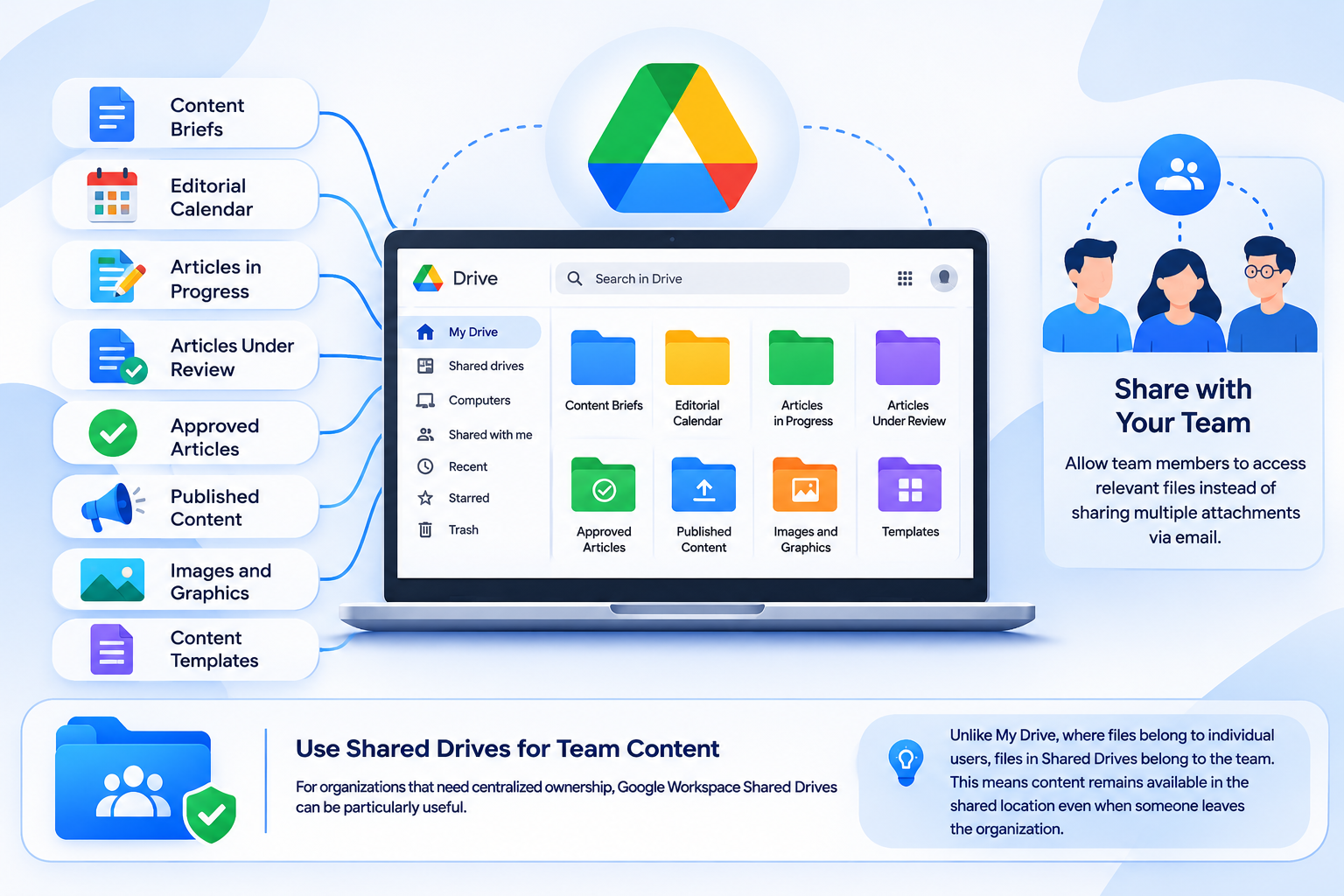
A structured file management system helps content teams keep drafts, research documents, images, and approved articles in one place.
Google Drive allows team members to access shared content files instead of exchanging multiple document attachments through email.
For better organization, create a central folder structure such as:
Use clear file names so team members can identify documents without opening them individually.
For example:
For organizations that need centralized ownership, Google Workspace Shared drives can be particularly useful.
Unlike My Drive, where files belong to individual users, files in Shared drives belong to the team. This means content remains available in the shared location even when an employee leaves the organization.
A content agency could create separate Shared drives for different departments or major client projects.
For example:
Access permissions should reflect each member’s responsibilities. Writers and editors may need editing access, while managers can control membership and sharing permissions.
This helps protect important content files and maintain continuity as the team grows.
Content planning becomes difficult when article ideas, assignments, deadlines, and publishing schedules are maintained separately.
Google Sheets can serve as a shared editorial calendar where content managers can monitor the entire production schedule.
A useful content production tracker should include:
Column | Purpose |
Content Title | Article or content topic |
Content Type | Blog, landing page, infographic, or social post |
Assigned Writer | Person responsible for writing |
Assigned Editor | Person responsible for reviewing |
Brief Status | Whether the brief is ready |
Production Status | Current writing progress |
Review Status | Whether the article is under review |
Deadline | Expected completion date |
Publishing Date | Planned publication date |
Document Link | Google Docs draft link |
Published URL | Final published content address |
Content Title | Writer | Status | Deadline |
WordPress Security Guide | Ali | In Progress | 16 Nov |
Google Workspace Backup | Ahmed | Under Review | 17 Nov |
VPS Hosting Guide | Usman | Approved | 18 Nov |
Domain Registration Guide | Ali | Published | 19 Nov |
The names and dates are illustrative.
Teams can use dropdown menus to maintain consistent status labels, filters to view individual assignments, and conditional formatting to highlight overdue work.
For example, a content manager can filter the spreadsheet to see all articles awaiting editorial review.
Best practice: Maintain one central editorial calendar rather than allowing individual writers and editors to create separate tracking spreadsheets.
Before writing begins, content teams should provide writers with clear instructions.
A content brief defines what needs to be written, who the intended reader is, and what the finished content should include.
Google Docs is suitable for creating reusable content brief templates.
A standard content brief can include:
For example, an SEO agency preparing an article about WordPress hosting can create a brief outlining the target audience, search intent, important sections, and technical points that must be covered.
The writer can use this document as a reference throughout the writing process.
Using a consistent brief template reduces misunderstandings and helps writers produce content that meets the team’s requirements.
Google Docs provides a shared writing environment where writers, editors, and content managers can work on the same document.
Instead of exchanging different versions of an article, team members can review and update a central document.
Several Google Docs features are particularly useful for content production.
Real-time editing: Multiple authorized users can work on the same document and see changes as they happen.
Comments: Editors can highlight specific sentences or paragraphs and leave feedback without changing the original text.
Suggesting mode: Reviewers can recommend changes without directly replacing the existing content. The document owner can accept or reject individual suggestions.
Assigned action items: Editors can assign comments to specific team members using their Google Workspace accounts. For example, an editor can ask a writer to verify a statistic or rewrite a section.
Version history: Teams can review previous document versions and restore earlier content when necessary.
Suppose a writer submits an article about Google Workspace security.
The editor may:
This keeps feedback connected to the relevant part of the article and reduces unnecessary communication.
Content production often involves writers, editors, SEO specialists, graphic designers, and publishing managers.
Google Chat Spaces can help teams organize these discussions around specific projects or activities.
For example, a content department could create the following Spaces:
Google Chat Space | Purpose |
Content Planning | Discuss upcoming topics and assignments |
Writing Team | Coordinate article writing |
Editorial Review | Discuss corrections and pending approvals |
Graphic Design | Coordinate featured images and infographics |
Publishing Team | Manage approved content and publishing tasks |
Team members can share Google Docs and Drive files within relevant conversations.
Google Chat also supports group tasks in Spaces. A content manager can create a task, assign it to a team member, and set a due date.
For example:
Assigned tasks can also appear in the responsible user’s personal Google Tasks list.
This makes Google Chat useful for coordinating content assignments instead of relying entirely on informal messages.
A well-maintained editorial calendar shows what needs to be published, while Google Calendar and Tasks help team members manage their individual responsibilities.
Google Calendar can be used to schedule:
Google Tasks can help individual team members organize their assignments and completion deadlines.
For example, a writer can create tasks for completing an article draft, incorporating editorial feedback, and preparing a final version.
Tasks with dates can appear in Google Calendar, making upcoming responsibilities easier to review.
For recurring editorial meetings, content managers can also schedule calendar events and invite relevant team members.
The editorial spreadsheet should remain the central production tracker, while Calendar and Tasks support individual scheduling and follow-up.
A defined approval process helps ensure that articles are reviewed before publication.
Content teams can combine Google Sheets, Google Docs, and Google Chat to manage each production stage.
A typical workflow looks like this:
Step 1: Content planning
The content manager adds the proposed article to the editorial calendar and assigns a writer.
Step 2: Brief preparation
The content brief is created in Google Docs and shared with the assigned writer.
Step 3: Draft creation
The writer prepares the article in Google Docs and updates its production status.
Step 4: Editorial review
The editor reviews the draft using comments and Suggesting mode.
Step 5: Revisions
The writer addresses feedback and submits the revised version.
Step 6: Final approval
The designated content manager or editor checks the final version and marks it as approved.
Step 7: Publishing preparation
The approved article, featured image, and supporting assets are organized in Google Drive.
Step 8: Publication tracking
The publishing team uploads the content to the website’s CMS, publishes it, and records the final URL in the editorial calendar.
It is important to distinguish document collaboration from formal approval. Google Docs supports reviewing and suggesting changes, but the team must define its own approval rules.
Google Workspace also does not automatically publish an article to WordPress simply because it has been approved. This requires a separate publishing process, integration, or automation.
To maintain an organized content production workflow, teams should follow a few consistent practices.
Use one central editorial calendar
Keep article assignments, deadlines, and publishing dates in one shared tracker.
Assign clear responsibilities
Every content task should have a responsible writer, reviewer, and final approver.
Use standardized content briefs
Create reusable templates so writers receive consistent instructions.
Maintain organized Drive folders
Separate unfinished drafts, reviewed articles, approved content, and published materials.
Set appropriate sharing permissions
Give writers, editors, and external contributors only the access they need.
Keep document links in the editorial tracker
Connect each assignment to its corresponding Google Docs document to make it easier to locate.
Review production progress regularly
Content managers should check overdue assignments, pending reviews, and upcoming publishing dates.
Even with the right tools, an unclear workflow can create unnecessary delays.
Avoid these common mistakes:
Addressing these issues can make content production easier to coordinate and maintain.