
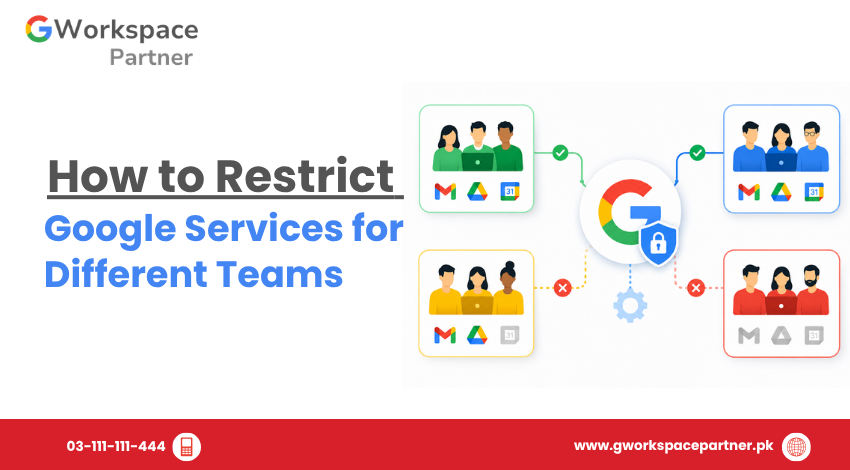
Not every team in your organization needs access to every Google service. Your sales team probably doesn’t need Google Sites. Your finance team may not need Google Chat. Giving everyone the same access by default is one of the most common mistakes Pakistani businesses make when setting up Google Workspace.
The good news: you can restrict Google services by team using Organizational Units (OUs) and service-level access controls in the Admin Console. No third-party tools required.
This guide shows you exactly how to do it, step by step.
In Google Workspace, every service — Gmail, Drive, Meet, Chat, Sites, Chrome sync, and more — can be turned on or off for specific groups of users. This is different from managing third-party app permissions; here, you’re controlling access to Google’s own core apps.
Restricting services means:
This is done through Organizational Units, which act like folders for your users. Each OU can have its own service settings, separate from the rest of the company.
One thing to keep in mind: OUs inherit settings from their parent OU. If you restrict a service at a top-level OU, every child OU underneath it inherits that same restriction unless you specifically override it at the child level. This is why settings sometimes “don’t work as expected” — the change was made at the wrong level of the hierarchy.
Some advanced controls also vary by edition. Features like granular Drive sharing restrictions or Chat data loss prevention are available on Business Plus and Enterprise plans, but may be limited or unavailable on Business Starter.
Restricting services isn’t about limiting productivity — it’s about matching access to actual job needs. Common scenarios in Pakistani organizations include:
If you’ve ever thought “why does this department have access to that?” — this is the fix.
If your teams are already organized into OUs, skip to Step 2.
Users inherit whatever service settings are applied to their OU, unless a more specific setting overrides it.
Repeat this for each service you want to control per team.
Google notes that changes can take up to 24 hours to fully apply across all users, though most changes reflect within minutes. Keep this in mind before assuming a setting isn’t working.
For services that support it, you can go further than ON/OFF:
This lets you fine-tune access rather than just switching services fully on or off.
Ask a user from the restricted OU to sign in and confirm the service is hidden or limited as expected.
Organizational Units work well when your teams map cleanly to a hierarchy. But if you need to apply the same service settings to a specific set of users who sit across different departments — for example, “all team leads” or “everyone on a client project” — creating extra OUs for this gets messy fast.
For these cases, Google Workspace supports configuration groups. Instead of moving users into a new OU, you apply service settings directly to a Google Group. If a user belongs to more than one configuration group, the group with the highest priority (set by you in the Admin Console) determines their settings.
Use configuration groups when:
Stick with OU-based restrictions when the access rule matches your actual department structure — it’s simpler to manage long-term.
If you’ve chosen the allowlist option:
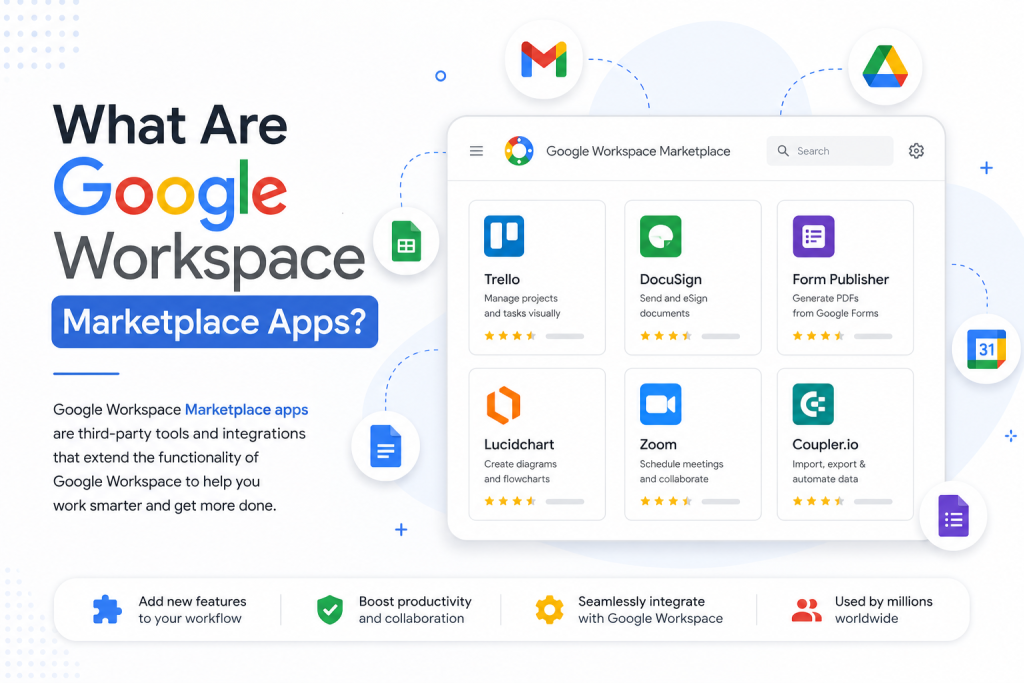
Once allowlisted, users across the domain (or a selected organizational unit) can install that app without needing individual admin approval each time.
Yes. Create a child OU containing just that user, or place them in a small group and apply group-based settings where supported.
No. Turning a service off prevents users in that Organizational Unit from accessing the service. Existing data is typically preserved unless it is removed through separate retention or deletion policies.
OU-based service restrictions are available on all standard Google Workspace editions, including Business Starter, Standard, and Plus. Some granular sharing controls may vary by plan.
Most changes apply within minutes, though Google states it can take up to 24 hours in some cases.
Yes. Since restrictions are tied to OUs, an admin can simply move the user's account or update the OU setting when access needs to change.
Restricting Google services by team keeps your Workspace organized, secure, and aligned with how your business actually operates. Using Organizational Units, you can control exactly which services each department, branch, or role has access to — without affecting the rest of your domain.
Start by mapping out your teams, group them into OUs, and apply service restrictions one department at a time. Review the setup periodically as your organization grows.

As G Suite resellers in Pakistan, we offer great prices on tools that improve communication, enhance teamwork, and provide strong security. Boost your business efficiency with us today!
97-C OPF Society, Khayaban-e-Jinnah Road, Lahore, Pakistan
Copyright © 2025 gworkspacepartner.pk All Rights Reserved.
WhatsApp us