
As your organization grows, one person shouldn’t have to manage every Google Workspace setting. Your HR team may need to create user accounts, your IT team may need to reset passwords, and your finance department may need access to billing information. Giving all of them Super Admin access isn’t the safest approach.
Google Workspace allows you to assign different administrator roles based on each person’s responsibilities. This means employees receive only the permissions they need to perform their jobs while keeping your organization’s data and settings secure.
In this guide, you’ll learn how to assign admin roles in Google Workspace, understand the different predefined administrator roles, and follow Google’s recommended security practices. Whether you’re managing a startup, software house, school, NGO, or enterprise in Pakistan, assigning the right administrator role helps you delegate work without giving away unnecessary control.
Before assigning an administrator role, take a few minutes to prepare.
Make sure that:
Taking these simple steps helps prevent accidental permission changes and keeps your Google Workspace environment secure.
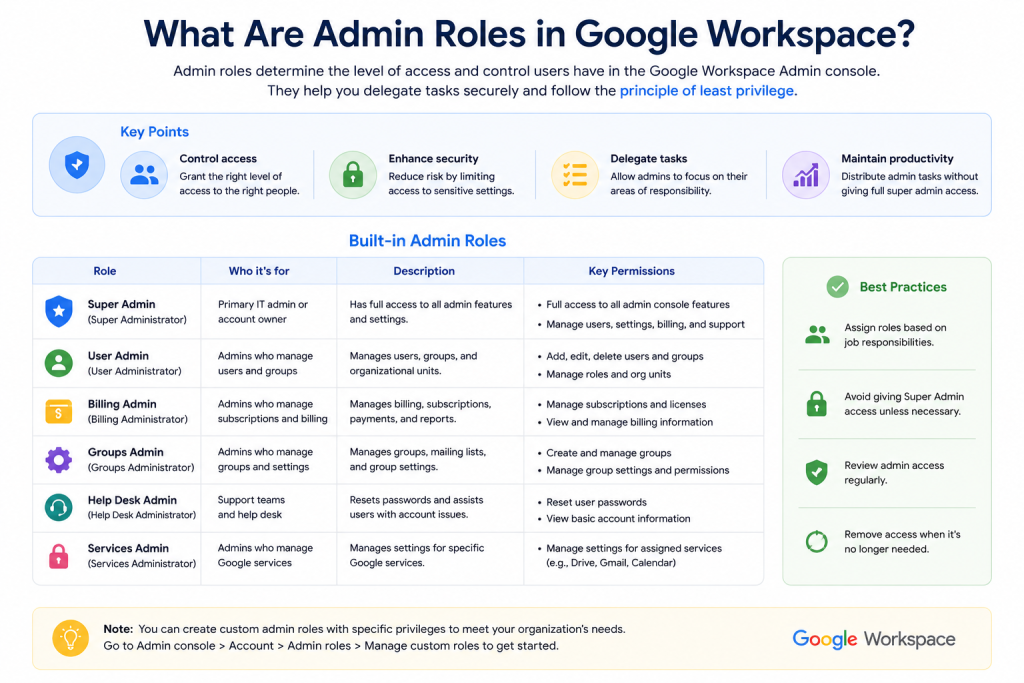
An admin role is a set of permissions that allows a user to perform specific administrative tasks within Google Workspace.
Instead of giving every administrator complete control over your organization, Google lets you assign only the permissions each person needs.
For example:
This approach follows Google’s recommended Principle of Least Privilege, which means giving users only the permissions necessary to perform their work.
One of the most common mistakes new administrators make is assigning the Super Admin role to every member of the IT team.
While this may seem convenient, it creates unnecessary security risks.
A Super Admin can:
If a Super Admin account is compromised, an attacker could gain complete control of your Google Workspace organization.
For this reason, Google recommends keeping the number of Super Admin accounts as low as practical. Most organizations should maintain at least two trusted Super Admin accounts for emergency access while assigning other administrators more limited roles.
Security Tip: Only assign the Super Admin role when someone genuinely needs full administrative control. Most day-to-day tasks can be handled using predefined administrator roles with fewer permissions.
Assign an administrator role whenever someone needs to manage part of your Google Workspace environment but doesn’t require complete administrative control.
Common situations include:
For example, imagine a software house in Lahore with 80 employees. The HR manager regularly creates accounts for new staff and suspends accounts when employees leave. Instead of making the HR manager a Super Admin, assigning the User Management Admin role provides the necessary permissions without exposing sensitive security or billing settings.
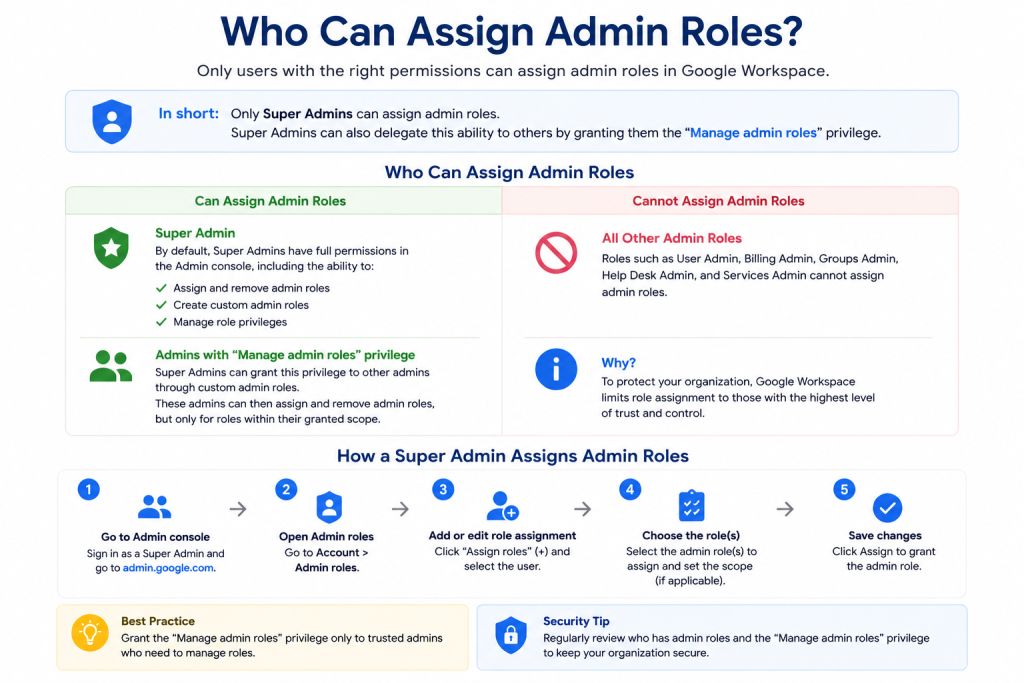
Only administrators with the required permissions can assign administrator roles.
This usually includes:
If you don’t have permission to manage administrator roles, the Assign Roles option won’t appear in the Google Admin console.
Google Workspace includes several predefined administrator roles designed for different responsibilities.
Administrator Role | Best For | Typical Responsibilities |
Super Admin | Organization owner or senior IT administrator | Full administrative control over Google Workspace |
User Management Admin | HR or IT team | Create, edit, suspend, restore and manage users |
Help Desk Admin | Technical support | Reset passwords and assist users with account issues |
Groups Admin | Collaboration administrators | Create and manage Google Groups |
Billing Admin | Finance department | Manage subscriptions, billing and licenses |
Security Admin | Security team | Configure security settings and review security alerts |
Reports Admin | Compliance or management | Access reports and audit information |
Services Admin | IT administrators | Manage Google Workspace services and settings |
Choosing the right predefined role is usually the safest and easiest option. If none of these roles meet your organization’s needs, you can create custom administrator roles, which we’ll cover in a separate guide.
Assigning an administrator role only takes a few minutes.
Follow these steps.
Sign in using a Super Admin account or another account that has permission to manage administrator roles.
Once you’re signed in, you’ll see the Google Admin dashboard.
From the left navigation menu, go to:
Directory → Users
You’ll see a list of all users in your Google Workspace organization.
Click the name of the user who should receive administrator permissions.
This opens the user’s profile page, where you can manage account settings, licenses, groups, and administrator privileges.
Scroll to the Admin Roles and Privileges section.
Depending on your Admin console layout, you may need to expand additional settings to find it.
Click Assign Roles to continue.
Google Workspace displays the available administrator roles.
Select the role that best matches the employee’s responsibilities.
Remember, it’s better to assign the smallest set of permissions needed rather than granting excessive access.
If the employee needs more than one responsibility, you can assign multiple administrator roles instead of making them a Super Admin.
Click Save to apply the new administrator role.
Most changes become active within a few minutes, although some permissions may take a little longer to propagate across Google Workspace services.
If the new administrator doesn’t immediately see their new permissions, ask them to:
In most cases, the permissions become available shortly after the role is assigned.
After assigning an administrator role, it’s a good idea to confirm that the changes have been applied correctly.
To verify the assigned role:
You should also ask the new administrator to sign in and verify that they can access the features required for their job. If they don’t see the expected options immediately, have them sign out, sign back in, and wait a few minutes while the changes finish propagating.
Assigning administrator roles carefully helps protect your organization from accidental changes and unauthorized access.
Google recommends giving administrators only the permissions they need to perform their work.
For example, if someone only needs to reset passwords, assign the Help Desk Admin role instead of Super Admin.
Smaller permission sets reduce security risks and make administrator accounts easier to manage.
The Super Admin role has complete control over your Google Workspace organization.
Although Google recommends maintaining at least two trusted Super Admin accounts for emergency access, avoid creating more Super Admins than necessary.
The fewer accounts with full privileges, the smaller your security risk.
Administrator accounts are valuable targets for attackers.
Every administrator account should use:
Avoid using administrator accounts for everyday email or routine work. Many organizations maintain separate accounts for administrative tasks and daily communication.
Employees’ responsibilities change over time.
Schedule regular reviews of administrator roles to ensure users still require the permissions they’ve been granted.
Remove unnecessary privileges as soon as they are no longer needed.
If your Google Workspace edition supports Multi-Party Approval (MPA), consider enabling it for sensitive administrator actions.
This feature requires another Super Admin to approve certain high-risk actions—such as assigning Super Admin privileges—helping reduce the risk of accidental or unauthorized changes.
Google’s predefined administrator roles are designed around common business responsibilities and are easier to manage than creating highly customized permission sets.
Only create custom administrator roles when your organization has specific operational requirements that predefined roles cannot meet.
Many organizations unintentionally create security risks when managing administrator access.
Avoid these common mistakes:
Taking a few extra minutes to manage administrator access properly can significantly improve your organization’s security.
Google generally recommends maintaining at least two trusted Super Admin accounts for recovery and emergency situations while keeping the overall number as low as practical.
Yes. A user can have multiple administrator roles if their responsibilities require permissions from more than one predefined role.
Yes. Removing an administrator role only removes administrative permissions. The user's account, email, files, and other data remain unchanged.
You probably don't have sufficient administrator privileges. Only Super Admins and administrators with the required role management permissions can assign administrator roles.
Most changes are applied within a few minutes, although some permissions may take longer to propagate across Google Workspace services.
Generally, no. Administrators can only assign roles if their existing permissions allow them to manage administrator roles. The ability to assign or elevate privileges depends on the permissions already granted to their account.
A Super Admin has complete control over every aspect of Google Workspace, including security, billing, services, and administrator roles.
A User Management Admin focuses on managing user accounts, such as creating users, updating account information, suspending accounts, and restoring users, without receiving full administrative control.
Most predefined administrator roles are available across Google Workspace editions. However, certain advanced administrative capabilities and security features may vary depending on your subscription and the Google services enabled in your organization.
Assigning admin roles in Google Workspace is one of the easiest ways to delegate administrative work while maintaining a secure environment. Instead of giving every administrator full control, you can assign predefined roles that match each employee’s responsibilities.
Whether you’re managing a startup, school, NGO, software house, or enterprise in Pakistan, using role-based administration helps reduce security risks, simplifies administration, and follows Google’s recommended best practices.
Before assigning any administrator role, identify the employee’s responsibilities and choose the predefined role that grants only the permissions they need. This approach keeps your Google Workspace environment easier to manage, more secure, and ready to grow with your organization.

As G Suite resellers in Pakistan, we offer great prices on tools that improve communication, enhance teamwork, and provide strong security. Boost your business efficiency with us today!
97-C OPF Society, Khayaban-e-Jinnah Road, Lahore, Pakistan
Copyright © 2025 gworkspacepartner.pk All Rights Reserved.
WhatsApp us