
Hey there!
Ever felt like grading assignments takes too much time… and students still ask:
👉 “Why did I get these marks?”
Or maybe you give feedback, but students don’t really improve?
If you’re using Google Classroom or planning to set up Google Workspace in Pakistan, learning how to use rubrics and feedback can completely change how you teach and grade.
Let’s make this simple and practical
Let’s keep it very easy.
A rubric is a grading guide that tells students:
Instead of just giving a number like 7/10, you break it into parts.
For an essay:
Now students clearly understand their performance.
👉 That’s what Google Classroom rubrics do — automatically and neatly.
Let’s be honest — grading can be stressful.
But rubrics make everything easier.
You don’t have to repeat the same comments again and again.
All students are graded using the same criteria.
They know expectations before submitting work.
No confusion about marks.
Students improve faster when they understand mistakes.
Imagine you’re teaching in a school in Pakistan.
You assign a presentation.
Without a rubric:
With a rubric:
👉 Simple, fair, and professional.
Now let’s get practical.
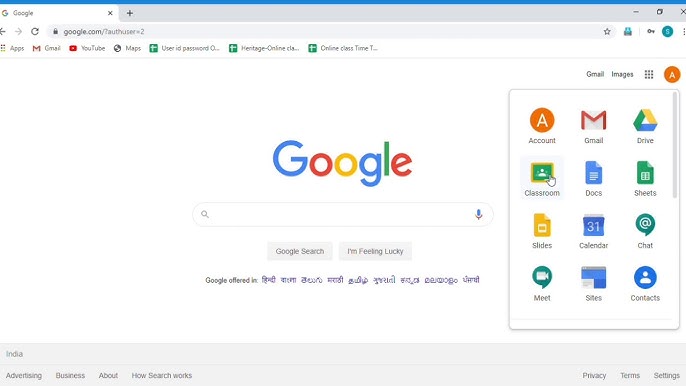
You’ll see options:
Click Create rubric
Add what you want to grade:
Example:
Explain each level clearly.
Example:
👉 This helps students understand expectations.
Click Save
Done! Your rubric is ready.
Yes — and this is a big time saver.
You can:
👉 Perfect for weekly tests and regular tasks
Yes — and this is very helpful.
Students can:
👉 This leads to better results.
Marks alone are not enough — students need guidance.
Let’s see how to give feedback properly.
Go to the assignment and open submission.
Read carefully and check mistakes.
Select levels for each criteria.
Use:
Click Return
👉 Students will see marks + feedback.
Only visible to the student
👉 Good for personal guidance
Add notes directly inside:
Students see exactly where they lost marks.
Edit their work and suggest improvements.
From a student’s point of view:
Good feedback helps them:
Without feedback:
👉 Same mistakes repeat
With feedback:
👉 Improvement happens quickly
If you’re using Google Workspace, you get powerful tools:
👉 This makes it a complete digital classroom system
If you’re using Google Workspace, you get powerful tools:
👉 This makes it a complete digital classroom system
If you’re teaching in Pakistan, these tips will help a lot:
Use easy English so all students understand.
Apply them in every major assignment.
Clear and simple works best.
Helpful for younger students.
Many students use phones.
Keep it simple (3–5 points)
Avoid: “Good work”
Use: “Strong idea but improve structure”
Students should see it first
Rubrics alone are not enough
Simple always works better
Yes!
Google Classroom is free to use.
But many schools prefer full Google Workspace because it provides:
More schools are moving to Google Workspace Pakistan because it helps with:
It also supports:
👉 Business Emails for schools and staff
👉 Easy collaboration
The cost depends on your needs.
Different Google Workspace plans are available for:
The good news?
👉 You can get affordable Google Workspace pricing in Pakistan through official partners.
If you’re thinking:
👉 “How do I set this up for my school?”
We’re here to help.
gworkspacepartner.pk is a subsidiary of CreativeON.com (serving since 2001).
We provide:
👉 And here’s the best part:
We offer lower rates because we are official Google partners and focus on helping customers — not just making profit.
Yes, students can view the rubric before submitting. This helps them understand how their work will be graded.
Yes, teachers can reuse rubrics for multiple assignments, saving time and ensuring consistency.
Yes, Google Classroom is free. However, many schools use Google Workspace for better features and control.
Yes, because students clearly understand expectations and can improve their work accordingly.
Let’s quickly recap:
If you haven’t used rubrics yet, try them in your next assignment.
You’ll notice:
👉 Faster grading
👉 Better student performance
👉 Less stress
And honestly… your students will appreciate it
If your school wants to set up Google Workspace, Google Classroom, or Business Emails in Pakistan, our team at gworkspacepartner.pk is here to help.
We’ll guide you step by step with affordable Google Workspace pricing in Pakistan — so you can move your classroom online without stress.

As G Suite resellers in Pakistan, we offer great prices on tools that improve communication, enhance teamwork, and provide strong security. Boost your business efficiency with us today!
97-C OPF Society, Khayaban-e-Jinnah Road, Lahore, Pakistan
Copyright © 2025 gworkspacepartner.pk All Rights Reserved.
WhatsApp us